How to Use Evernote Backup Tool: Complete Step-by-Step Guide
Follow the current five-step desktop workflow: connect, sync, export, schedule, and verify. See the real settings, report, HTML archive, Obsidian vault, and UpNote import controls.

What the app does
Evernote Backup Tool is a desktop app for keeping a local copy of an Evernote or Yinxiang account. It downloads supported notebooks, notes, tags, and resources into a SQLite database on your computer. You can then create files in three formats without sending the notes to a conversion website:
ENEX for preservation
Keeps Evernote's note structure, available metadata, and attachments in an import-friendly backup format.
HTML for reading
Creates a searchable offline library that opens in a browser, with images and attachments beside the notes.
Markdown for editing
Writes one Markdown note per file, with notebook folders and local resources that can be opened in Obsidian.
Free trial: You can sync the full account, view and save the local report, and export up to 50 different notes with their attachments in ENEX, HTML, or Markdown. No payment card is required. The same note is counted once across formats and repeat exports; trial-exported notes count toward a purchased pack.
System requirements
macOS
- macOS 10.14 (Mojave) or later
- Enough free space for the database and a second copy of exported files
- Internet access while authorizing and syncing
Windows
- Windows 10 or later
- Enough free space for the database and a second copy of exported files
- Internet access while authorizing and syncing
Backup and export run on a computer. A phone or browser alone cannot run the desktop workflow. File export can run offline after the local database contains the notes and resources it needs.
Step 1: Download and install
macOS
- Download the
.dmgfrom the Download page. - Open the disk image and drag Evernote Backup Tool into Applications.
- If the first launch is blocked on macOS 14 or earlier, right-click the app and choose Open. On macOS 15 or later, use System Settings → Privacy & Security → Open Anyway.
Windows
- Download the portable
.zip. - Extract it to a folder you want to keep, such as
Documents\EvernoteBackupTool. - Open
evernote-backup-gui.exe. If Windows SmartScreen appears, choose More info → Run anyway.
Step 2: Configure Settings
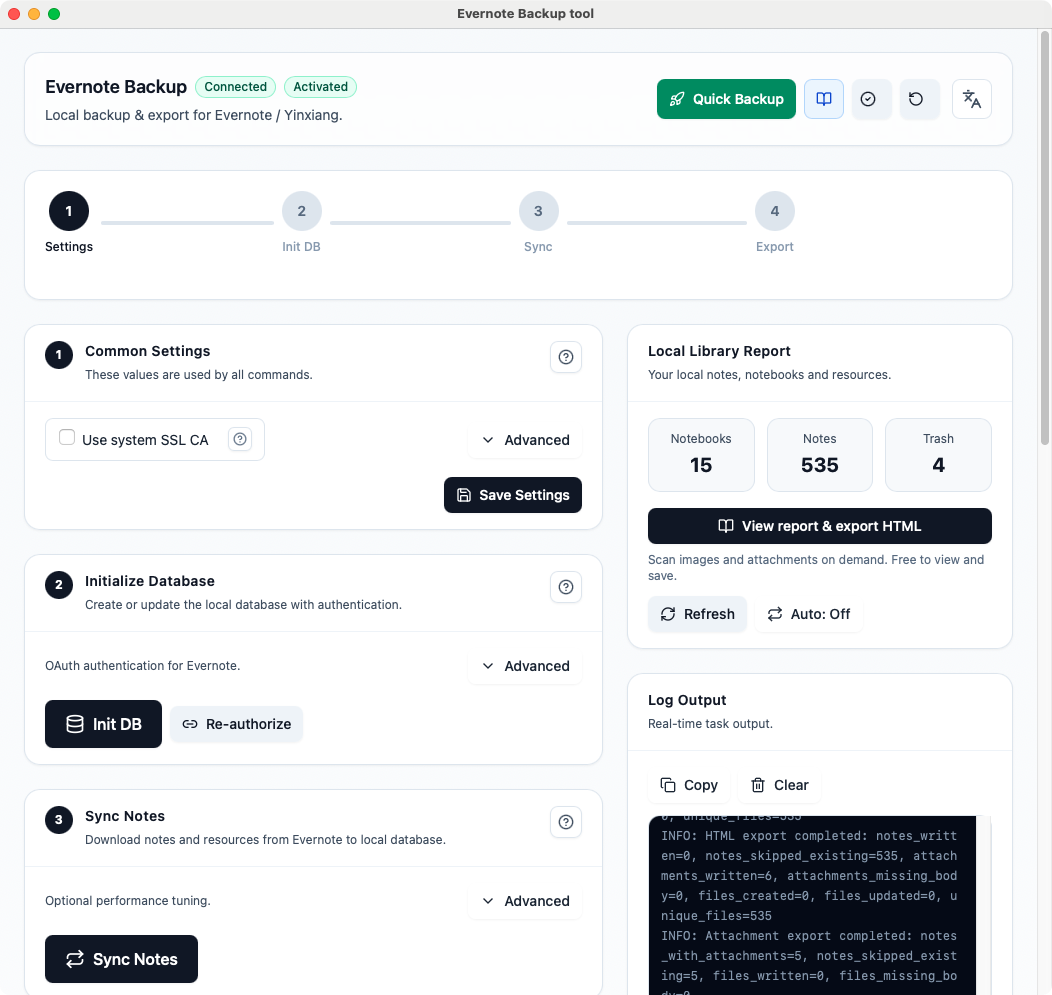
The visible Settings section covers the database name, the source service, and the SSL certificate mode. Expand Advanced when you need to change the local database file, choose Yinxiang, or adjust network retries.
en_backup.db by default. Keep it in a location with enough free space.evernote for Evernote International or the China option for Yinxiang.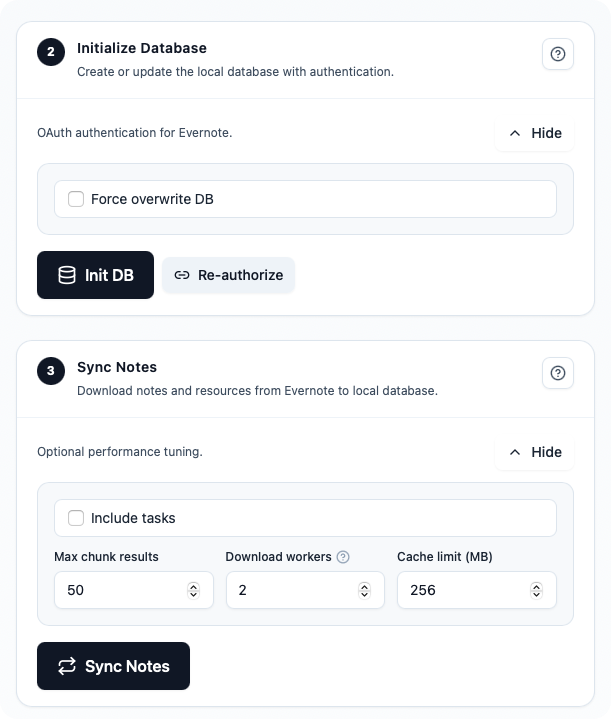
Step 3: Initialize Database
Initialization creates the local database and records the account authorization needed for sync.
Evernote International
- Click Init DB.
- Complete the Evernote sign-in and authorization in the browser window that opens.
- Return to the app and wait for initialization to finish.
Yinxiang
- Set the backend to the China option in Settings.
- Expand the Initialize Database advanced area.
- Enter the account credentials, then click Init DB. A one-time verification code may also be requested.
If your authorization later expires, use Re-authorize. It refreshes the token without discarding the notes already held in the database.
Step 4: Sync and check the local report
Click Sync Notes to download supported changes into the database. The first sync is the largest; later runs use the stored sync state and download only new changes. If a run is interrupted, start it again and let it continue the outstanding work.
Review the local library report
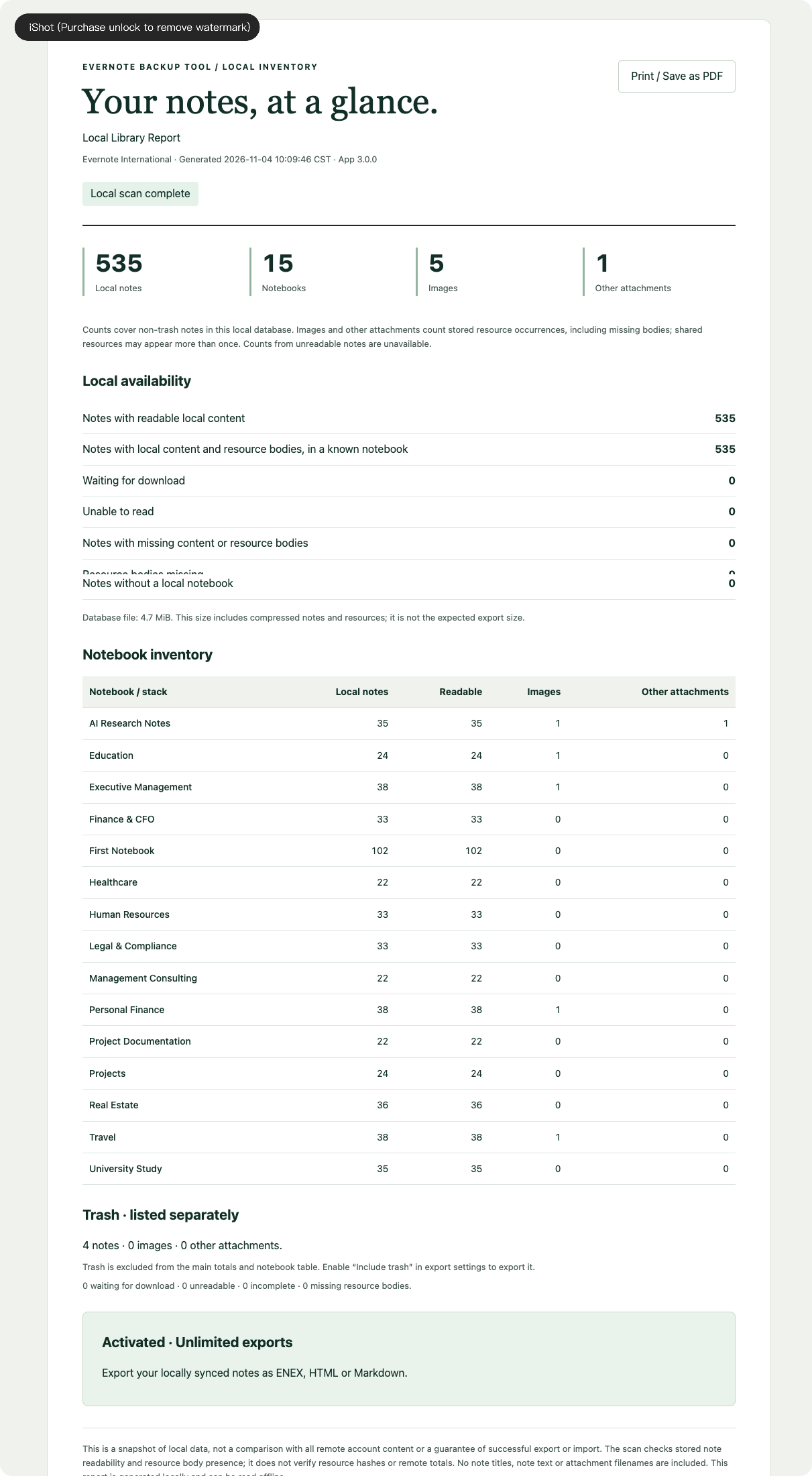
After a sync, click View local report or View report & export HTML in the sidebar. The report scans the database without spending export credits.
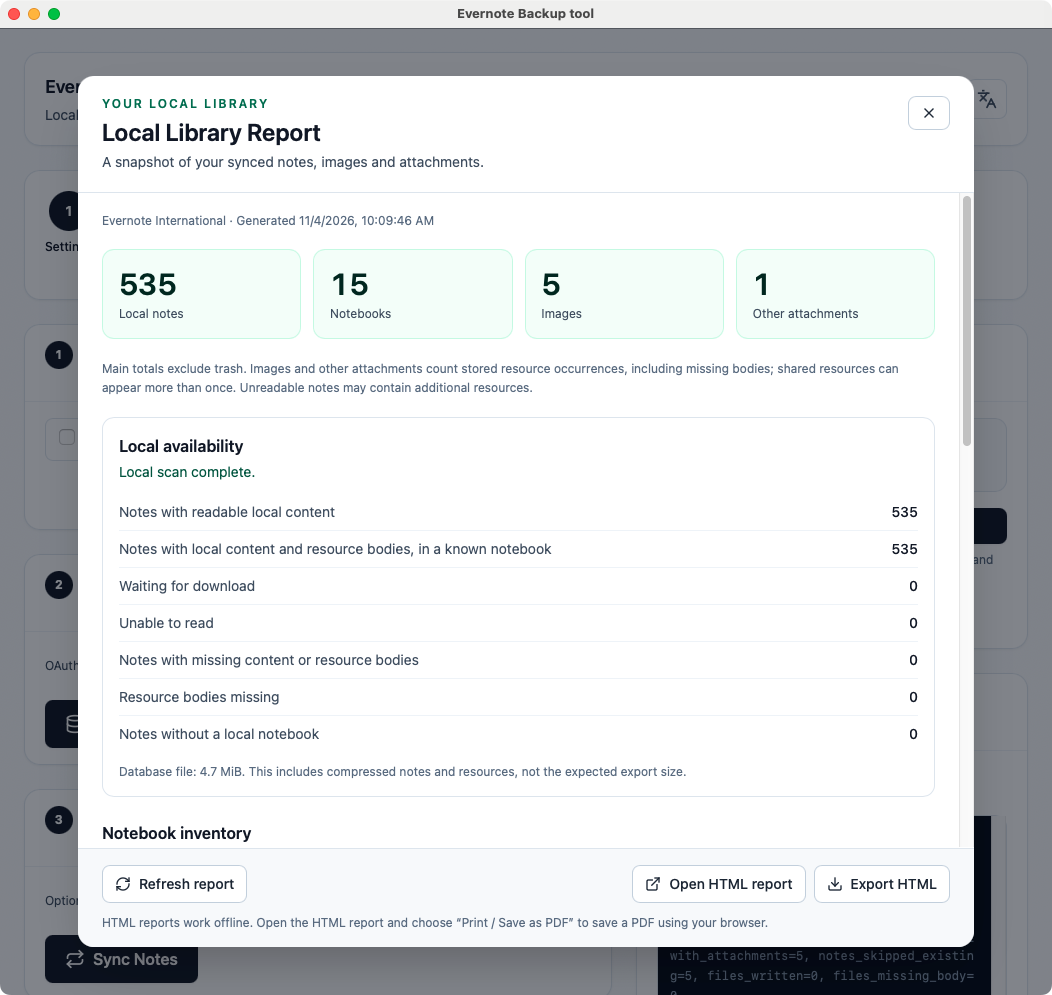
Use these checks before exporting a large library:
- Waiting for download: Run sync again and review unresolved items.
- Unable to read or incomplete: Investigate these before relying on that note.
- Missing resource bodies: An image or attachment has not produced a usable local file.
- Notes without a local notebook: Check whether the source item belongs in the scope you expect.
You can save the report as an independent HTML file and print it to PDF from a browser. The report usually goes into the reports/ folder under the current output directory.
Optional sync tuning
Open Sync Notes → Advanced only when needed. Download workers controls parallel downloads (default 4). Lower it to 1–2 if the service reports rate limits. Cache limit limits download memory. Include tasks adds task and reminder sync, which has separate authentication requirements.
Step 5: Export ENEX, HTML and Markdown
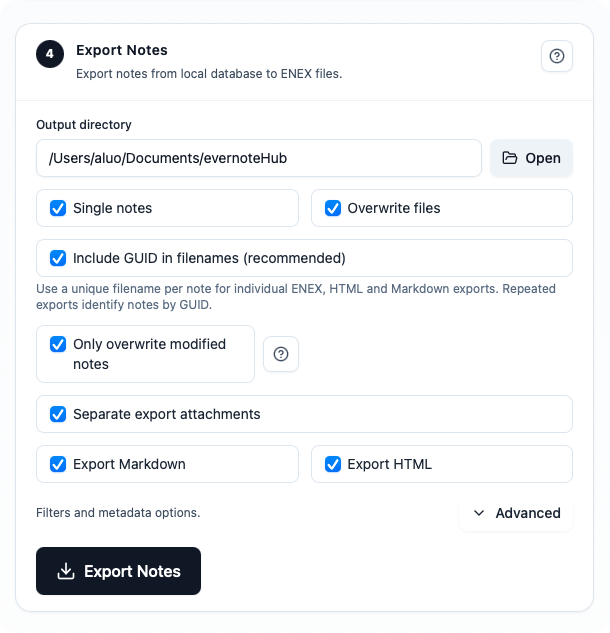
Set the Output directory, choose your options, and click Export Notes. The primary export is ENEX; selecting Export HTML or Export Markdown adds separately named folders for those documents.
Choose the output
- Default: One ENEX file per non-empty notebook, stored under its notebook or stack folder.
- Single notes: One individual ENEX file per note. Useful for a granular file set, but a library with thousands of notes produces thousands of files.
- Export HTML: Adds a browser-readable output with an index and note pages.
- Export Markdown: Adds one
.mdfile per note, notebook folders, and shared resource folders. - Separate export attachments: Also writes standalone attachment files under
NotebooksAttachments/.
Use repeat-safe filenames
Include GUID in filenames (recommended) is enabled by default. Individual ENEX, HTML, and Markdown files use a readable title plus the note's GUID. That keeps duplicate titles separate and lets later exports identify the same note. Turning it off can overwrite different notes that share a title.
Overwrite files replaces existing output. When it is enabled, Only overwrite modified notes rewrites notes whose content changed while leaving unchanged files and their timestamps in place. That can reduce unnecessary uploads in Dropbox, iCloud Drive, Syncthing, or Git workflows.
Use filters when the output should be smaller
Open Advanced to enter comma-separated notebook or tag filters. These select the records to export; they do not re-create Evernote searches or arbitrary query expressions. Include trash only when you intend to keep deleted notes in the archive.
Schedule automatic backups
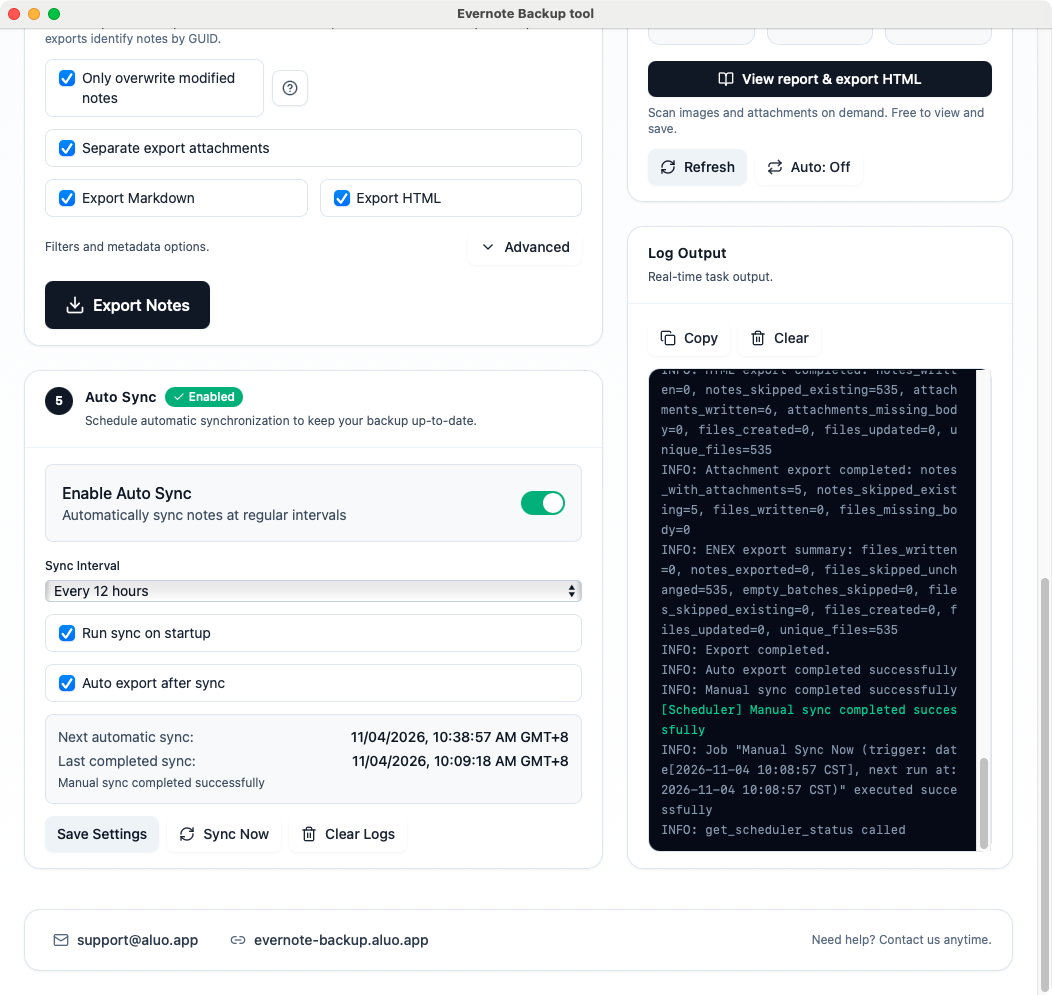
Enable Auto Sync after the first successful synchronization. Choose a 30-minute, hourly, 6-hour, 12-hour, or daily interval. For normal use, the 6-hour option is a sensible default shown in the app; use the short testing interval only while checking the setup.
- Run sync on startup: Runs a scheduled check when the desktop app launches.
- Auto export after sync: Reuses the saved export settings to write fresh files after a successful sync.
- Sync Now: Starts a manual sync without changing the schedule.
The schedule runs while the desktop app is open. It is not an operating-system service that continues after the app exits. Keep the app running and add it to startup applications if you want it to maintain the schedule.
Use Quick Backup
The green Quick Backup button in the header runs Initialize Database → Sync Notes → Export Notes in sequence using the settings already visible in the app. It is useful once the settings, output folder, and export formats are known to be correct.
For the first backup, run the steps manually. That gives you a chance to inspect the local report and check a sample of exported notes before repeating the same settings through Quick Backup.
Verify the exported files
Open the output directory and inspect each file type you intend to keep. The app preserves resources in shared folders, so a single note file is not the entire archive.
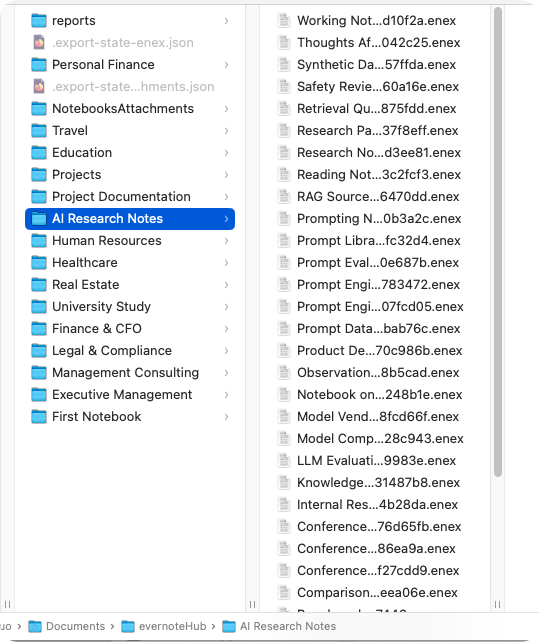
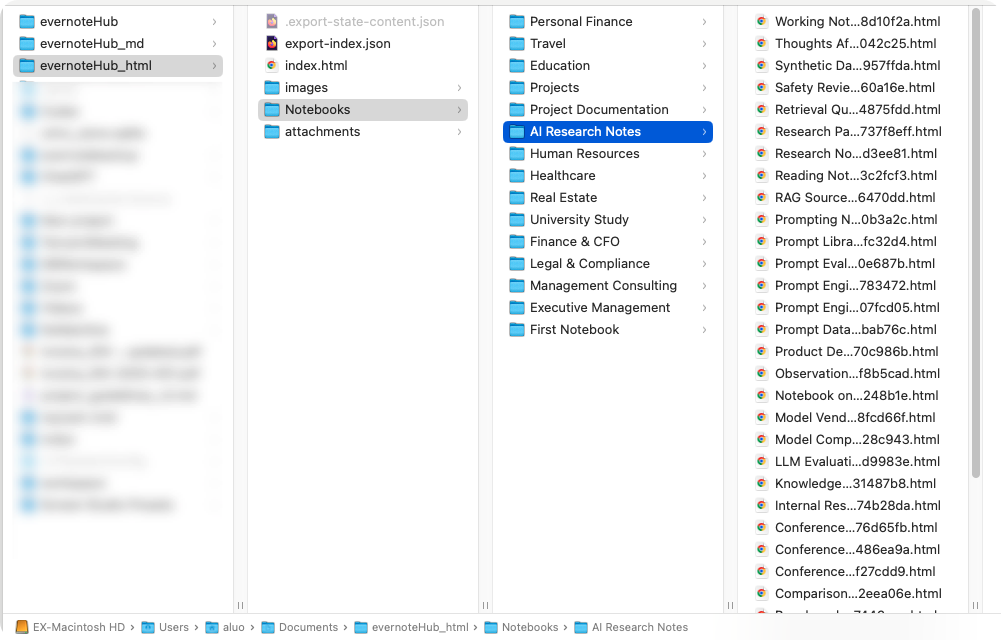
attachments, images, and notebooks together so note links resolve.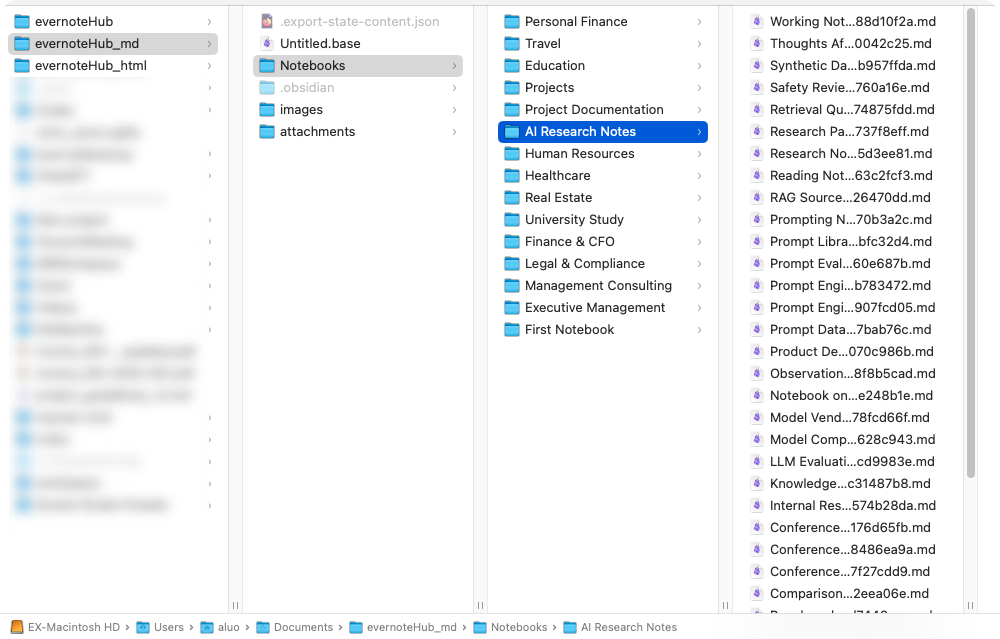
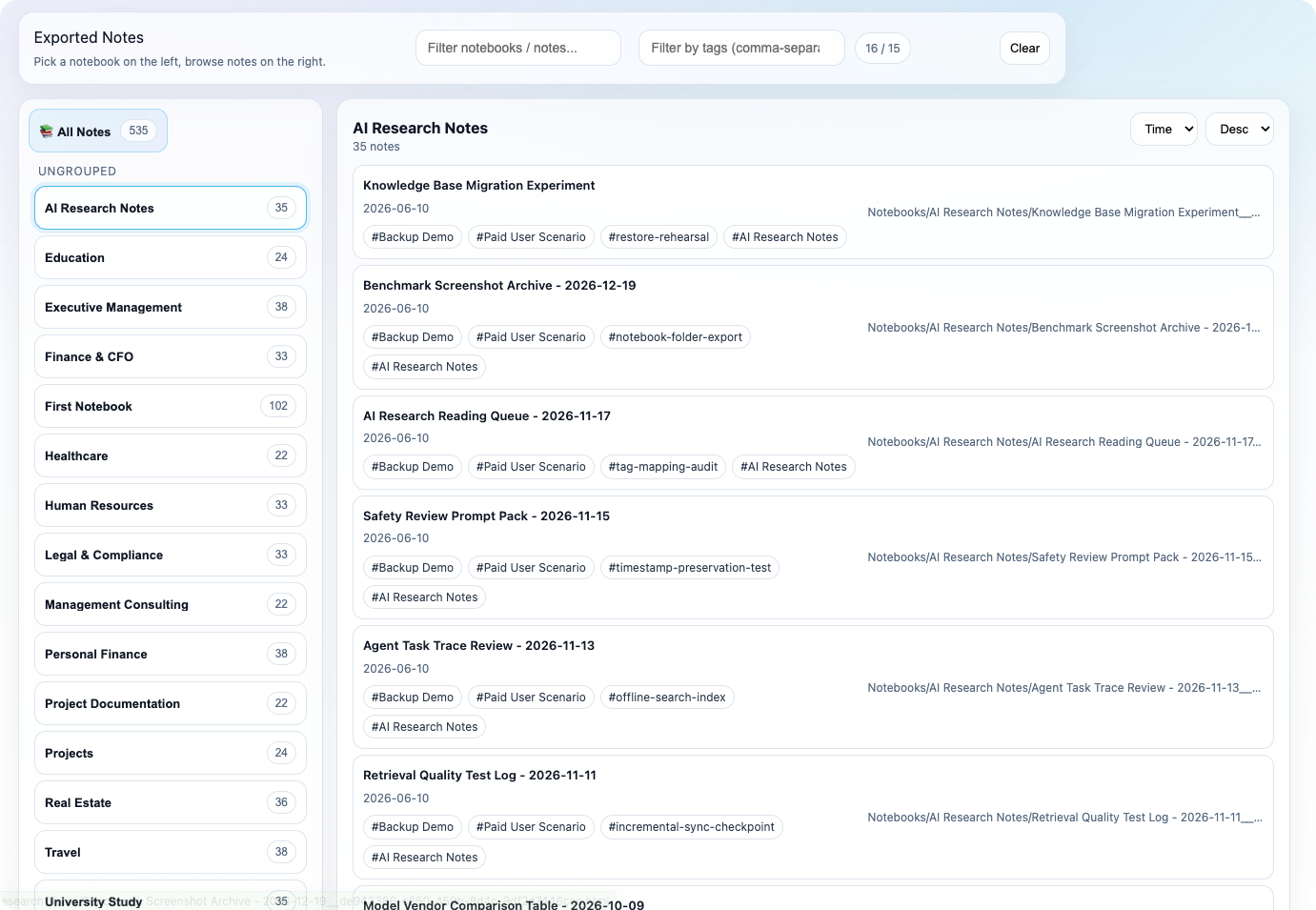
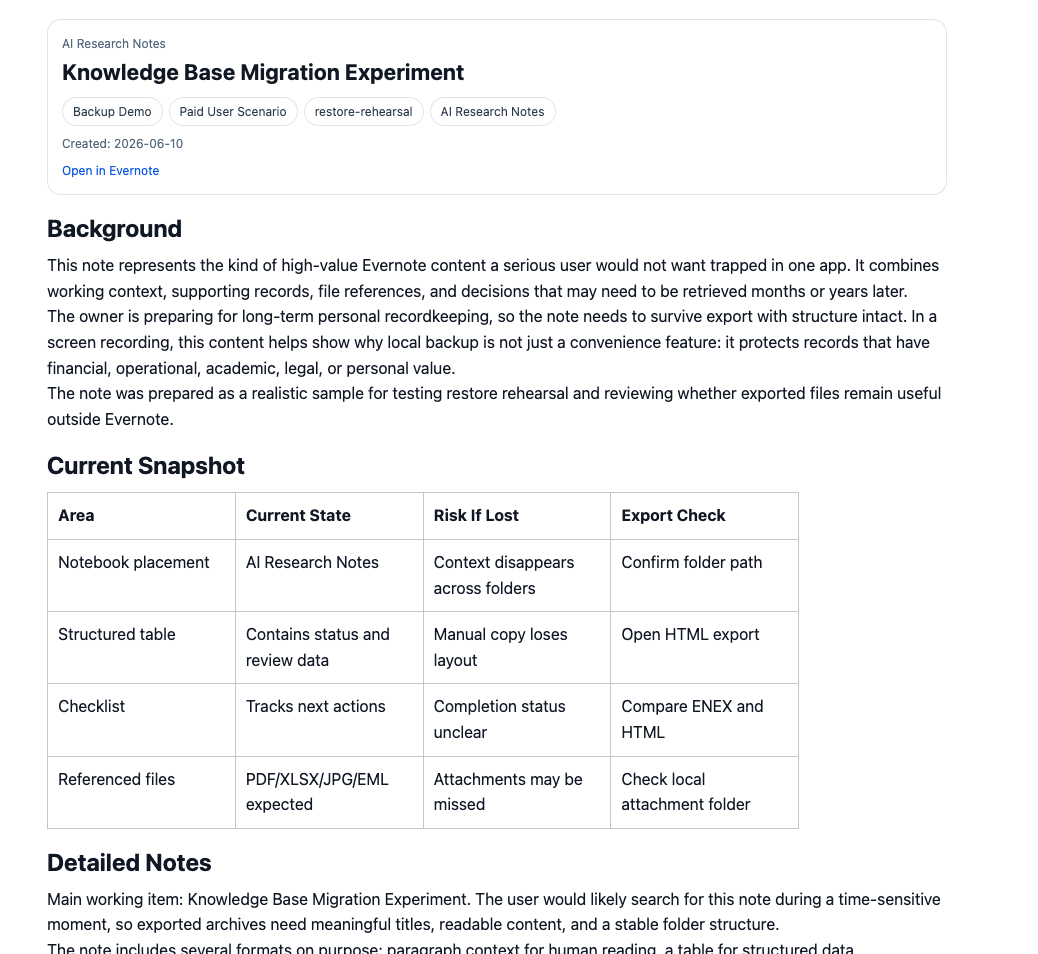
Open the HTML library
Open index.html in your browser. Search note titles, filter by notebook or tag, and open individual notes. No local web server is required.
Run a small verification
- Compare the report's readable note count with the files generated for the formats you chose. ENEX file count is different from note count when notebooks are packaged together.
- Open a recent note, an older note, a note with an image, and a note with a PDF.
- Check duplicate titles and non-Latin filenames. Confirm GUID filenames remain enabled if these are likely.
- Click an original Evernote note link and see where it opens. The exporter does not rebuild note links for the destination app.
- Copy one complete export directory to another drive and test it again. Relative resource paths should still work.
Open files in another app
The exporter creates local files; importing them into another service is a separate step controlled by that destination. Test a small representative batch before moving a large account.
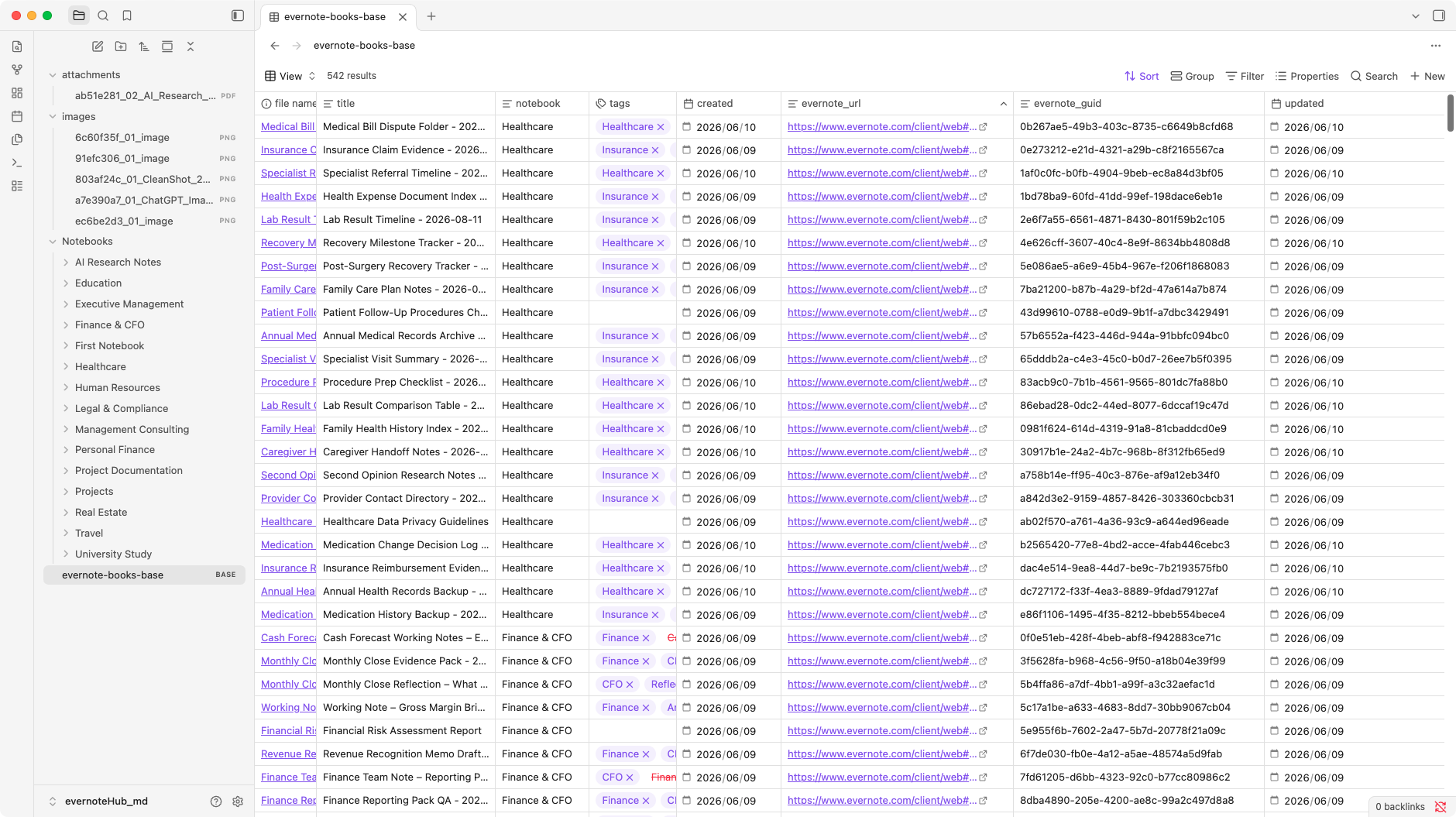
Obsidian
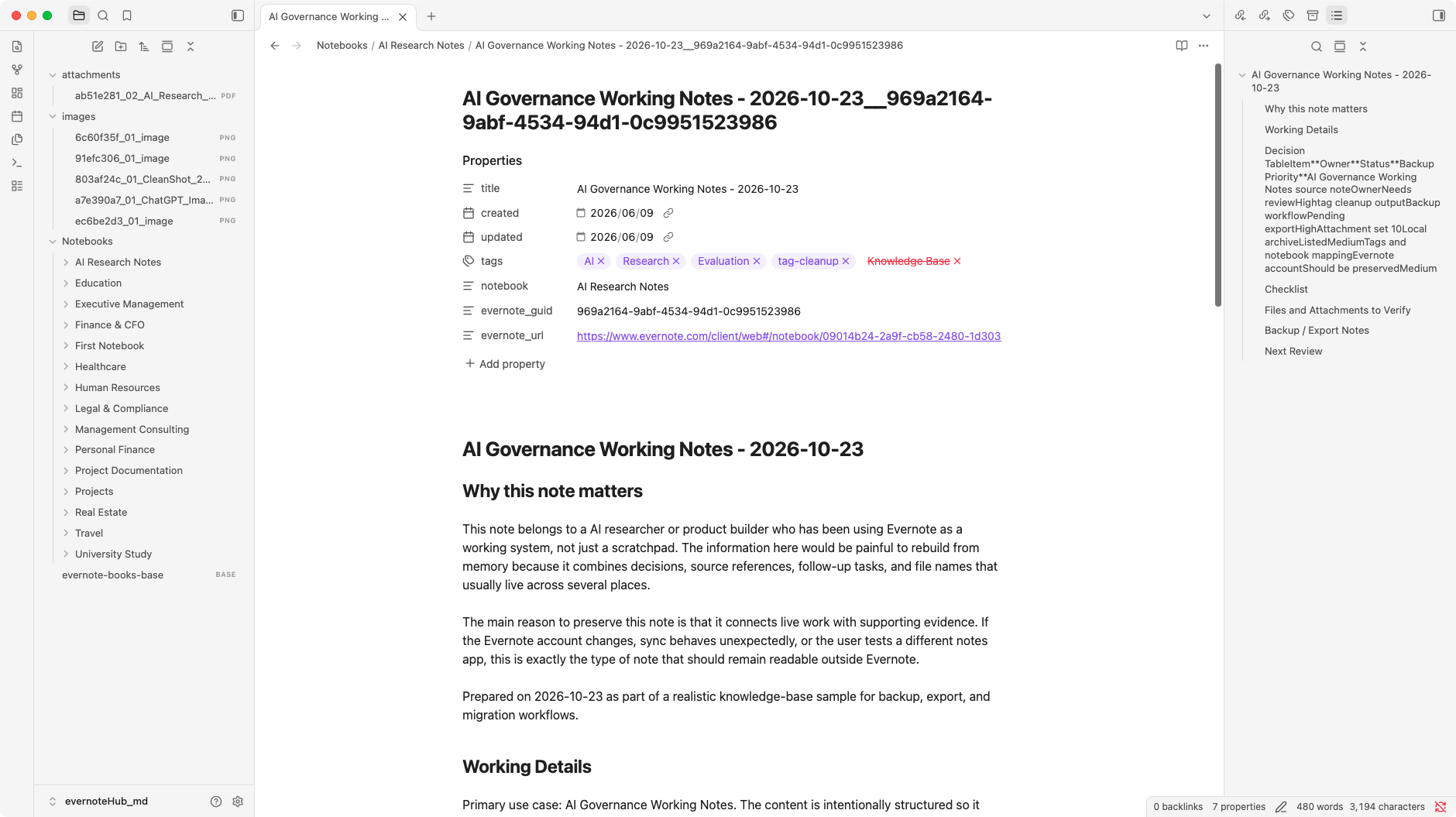
Choose Open folder as vault and select the complete Markdown export root, not just the Notebooks folder. The current export preserves notebook directories and local resource links, while original Evernote links remain Evernote addresses. See the current Obsidian workflow and metadata limits.
UpNote
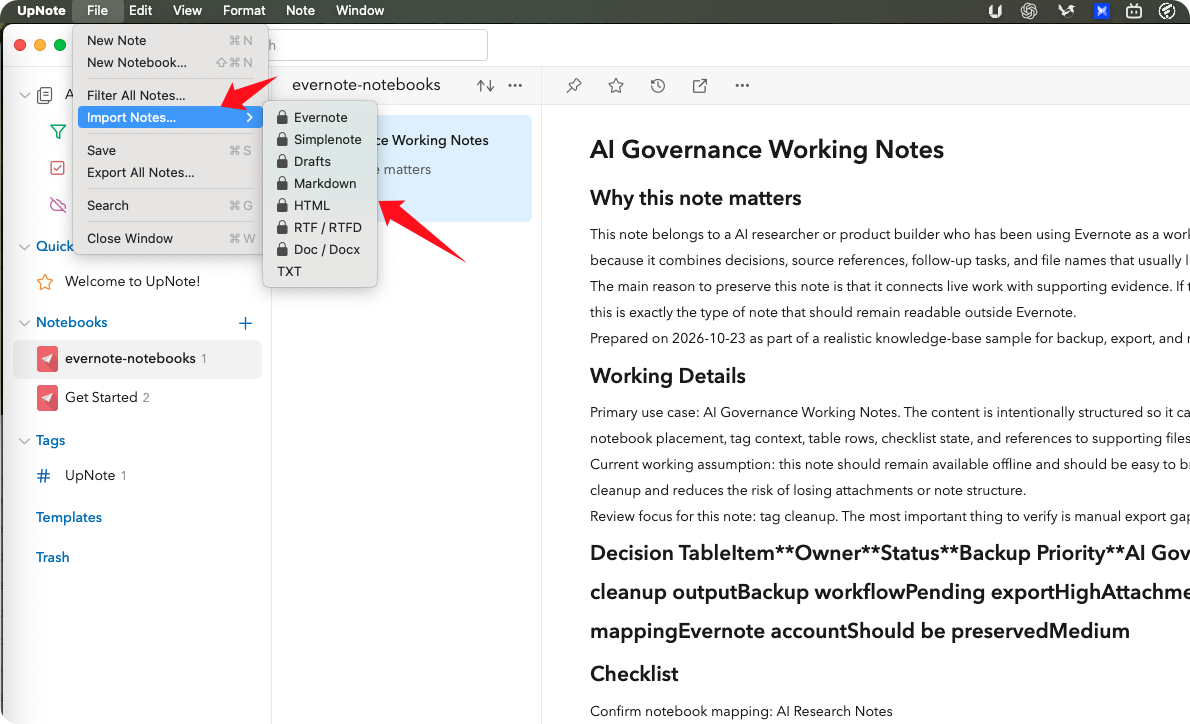
Leave Single notes disabled to make one ENEX file per notebook. In UpNote, import the ENEX files and choose Use filename as Notebook name. UpNote has its own limits for large attachments and very long notes; verify those before importing the whole library. See the UpNote import steps and limits.
Apple Notes
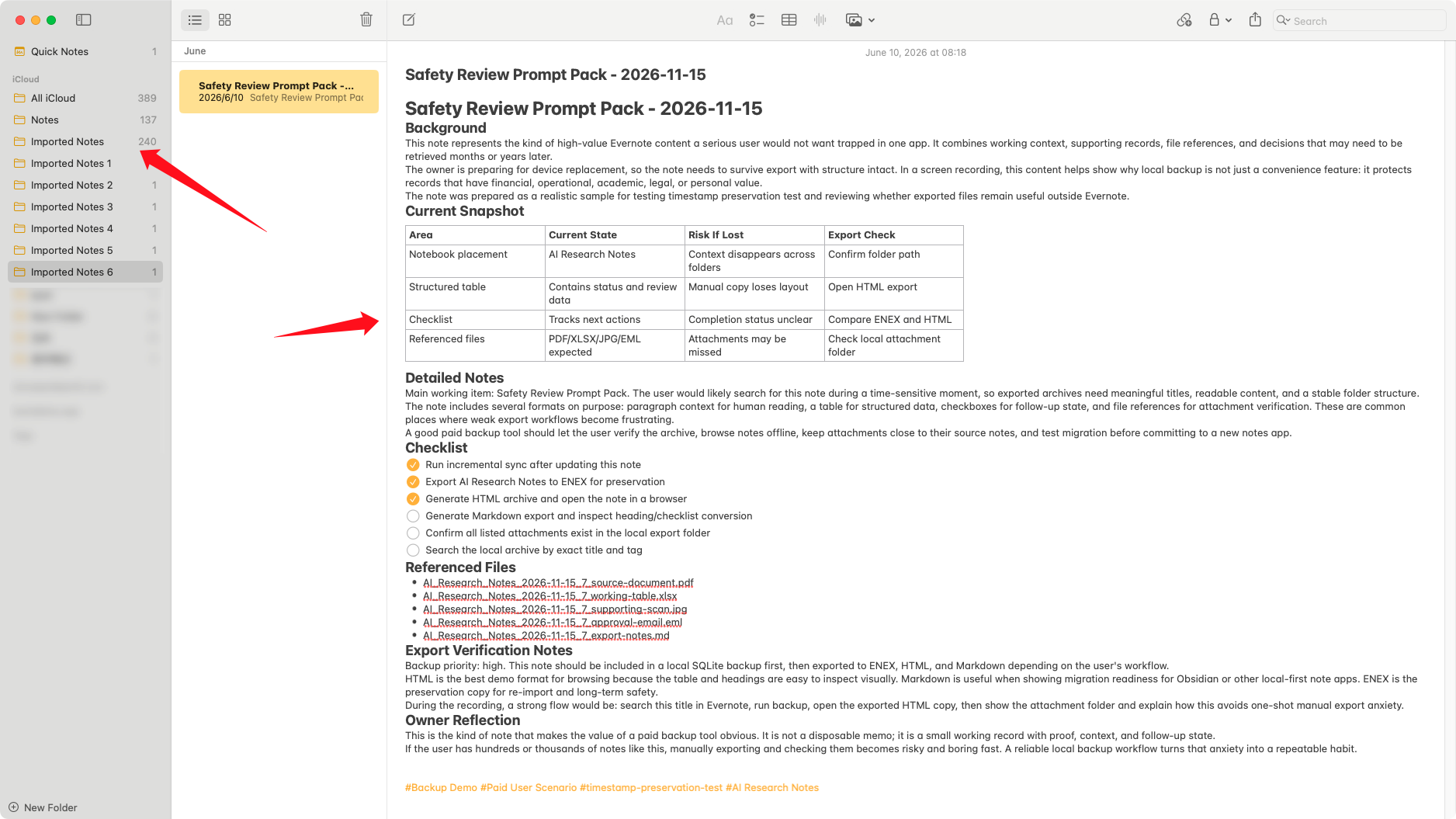
Use the default notebook-sized ENEX output and import it on a Mac with File → Import to Notes. Apple Notes controls which attachments and formatting survive. See the Apple Notes import route and checks.
Troubleshooting
An authentication token expired
Click Re-authorize and complete browser authorization again. This refreshes access to the existing database.
The database already exists
This is expected after the first setup. Sync can continue with the existing database. Use Force overwrite DB only when you deliberately want a new database.
An SSL certificate error appears
Enable Use system SSL CA, save Settings, and retry. If the problem continues, check the log for the connection detail before changing other settings.
Sync is slow or repeatedly rate-limited
The initial sync downloads the largest amount of content. If the service reports rate limits, reduce Download workers to 1–2 and retry after the wait period. Raising workers can make rate limits worse.
An exported note page is missing its image
Keep the complete output folder and check the report for missing resource bodies. A shared image or attachment folder moved away from the notes will break relative links.
Frequently asked questions
Where are the database and exports stored?
The database filename is controlled in Settings; the default is en_backup.db. Exported files go into the Output directory you choose, commonly output/. Markdown and HTML use additional folders derived from that name.
Can I export without paying?
Yes. The free trial covers full sync, the local report, and export of up to 50 different notes with their attachments. ENEX, HTML, and Markdown share that note allowance. A pack is needed to export more different notes.
Which format should I keep?
Keep ENEX as the preservation copy. Add HTML when you want to read and search the archive in a browser. Add Markdown when you want editable files or an Obsidian vault. You can produce all three together.
Can I import ENEX into every notes app?
No. Apple Notes, UpNote, Joplin, and other apps support different files, fields, and limits. Check the destination's current import instructions and test a sample. The backup app does not sign in to those services or write directly into their notebooks.
Do repeat exports use another note credit?
No. A different note is counted once across ENEX, HTML, and Markdown. Exporting the same note again in another format or on a later run does not consume another credit.
Does automatic sync continue after I close the app?
No. The desktop application must be running for its schedule to fire. Enable Run sync on startup and use a normal interval such as every 6 hours if you want regular checks.
Keep a copy you can open and check
Start with the 50-note trial, review the local report, and inspect a sample in the app where you plan to use your notes.
Download Evernote Backup Tool관련 가이드
Evernote Export Missing Notes? Why Your HTML File Count Doesn't Match
An export can report success while the number of HTML files on disk looks too low. Learn how to investigate duplicate titles, filename collisions, export settings, and OneDrive workflows before assuming notes are missing.
How to Back Up Evernote Before Changing Apps or Plans
Build a local copy first, verify it, and only then change your workflow. That order removes most of the avoidable risk.
How to Back Up Evernote Properly: 3-2-1 Copies and Restore Testing
A folder full of files is not proof that your Evernote data is safe. Build several copies, keep the right export formats, and test one real restore before you need it.