Evernote Export Missing Notes? Why Your HTML File Count Doesn't Match
An export can report success while the number of HTML files on disk looks too low. Learn how to investigate duplicate titles, filename collisions, export settings, and OneDrive workflows before assuming notes are missing.
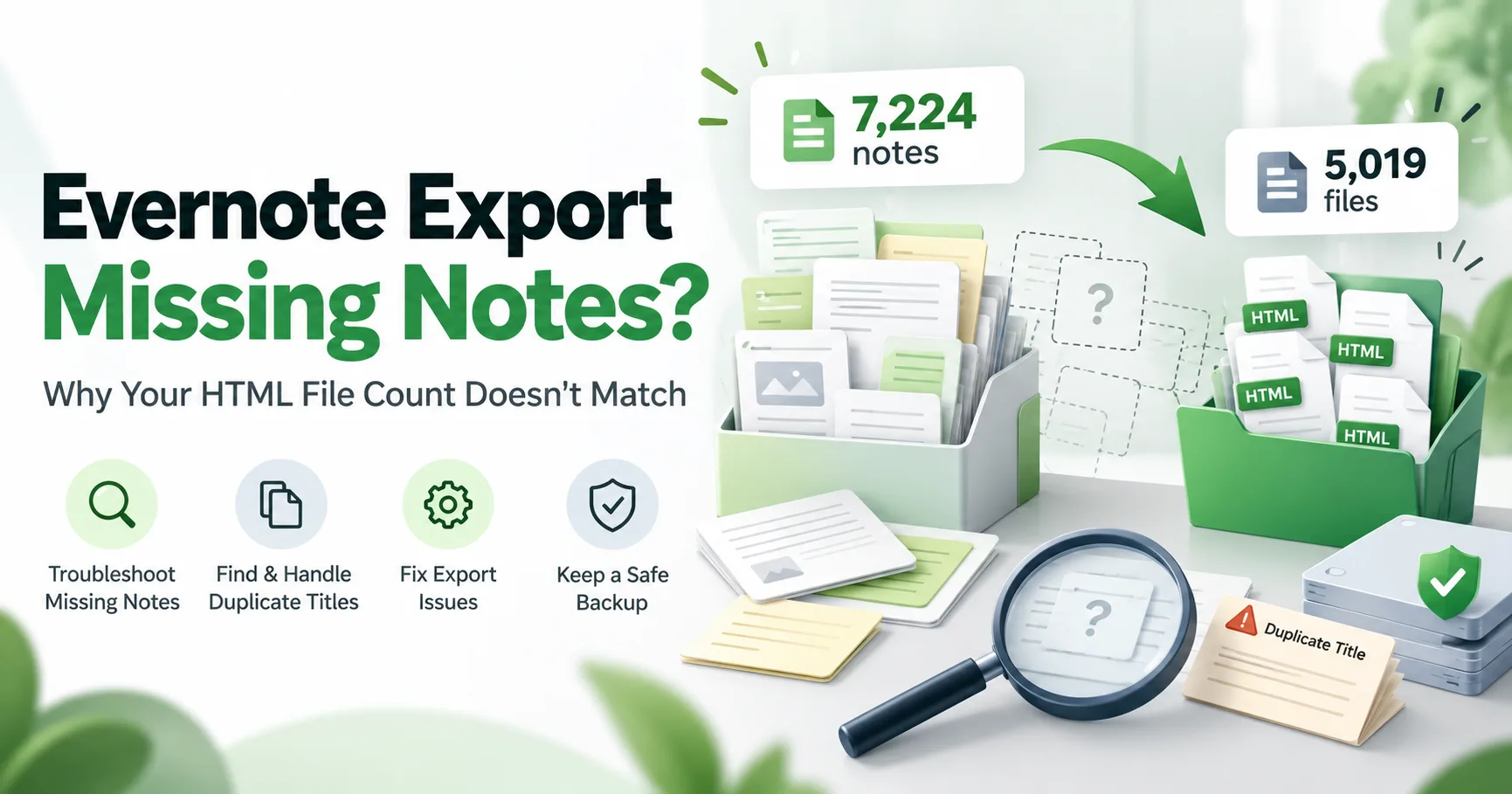
You open your Evernote export folder, expecting to find one HTML file for every note. But something doesn’t add up.
Imagine having more than 7,000 notes in Evernote, yet finding only about 5,000 individual HTML files after an export that reports success.
Where did the other notes go?
Before assuming your data is lost, there’s an important distinction to understand: a successful export operation doesn’t necessarily prove that every expected note has its own file.
Duplicate note titles, filename collisions, export settings, and folder organization can all affect what appears in your export directory.
Here’s how to investigate the difference and make your Evernote backup more reliable.
1. Why Does Evernote Export Fewer Files Than Notes?
Not every mismatch means data loss.
For example, exporting an entire notebook as one ENEX file is different from exporting each note as a separate HTML file.
An ENEX file can contain hundreds or thousands of notes, while a multi-page HTML export typically creates individual pages, along with an index and supporting resources.
Start by checking what you exported.
Was it a combined ENEX archive, individual ENEX files, or individual HTML pages? Were all notebooks included? Are you counting only note files, or are you also counting attachment and index files?
If you deliberately selected a one-file-per-note export, a significant unexplained difference deserves investigation.
2. Duplicate Note Titles Can Create Filename Collisions
Evernote allows separate notes to share the same title.
You might have several notes called:
- Meeting Notes
- Weekly Review
- Project Update
These notes may have different content, creation dates, notebooks, and identifiers.
However, an exporter that generates filenames using only the note title can run into a problem.
Suppose two different notes are both called “Meeting Notes.”
A title-based export might attempt to save both as:
Meeting Notes.html
When both files are written to the same folder, the exporter needs a collision-handling strategy. Depending on its implementation, it might append a number, create a separate folder, skip one file, or overwrite an existing file.
The important point is that a note title is not a reliable unique identifier.
Filename sanitization adds another complication. Characters that aren’t allowed in filenames may be replaced or removed, causing otherwise different titles to resolve to the same filename.
3. Does Adding the Evernote GUID Solve This Problem?
Each Evernote note has a unique identifier known as a GUID.
Using a stable note identifier in an export filename is one possible way to prevent different notes from sharing the same output path.
For example, a collision-resistant naming design could produce:
Meeting Notes__a1b2c3d4.html
Meeting Notes__e5f6a7b8.html
These are illustrative filenames, not a guarantee about how a particular exporter names its files.
There’s also an important distinction between including a GUID in exported metadata and including a GUID in the filename.
For example, in Evernote Backup Tool, the documented Add GUID option applies to ENEX metadata. It does not automatically append a GUID to HTML filenames.
If your goal is one uniquely named HTML file per note, verify the filename behavior of your actual export workflow rather than relying on the presence of a GUID setting.
4. How to Check Whether Your Evernote Export Is Complete
If your exported file count is unexpectedly low, use the following verification process.
Step 1: Preserve your original backup
Keep your original ENEX archive and local note database. Don’t delete, replace, or reorganize your only backup while investigating the discrepancy.
Step 2: Record your source note count
Check how many active notes you expect to export. Make sure the count refers to the same notebooks and note status included in the export.
Step 3: Count individual note files
Count the generated HTML files, excluding index pages and unrelated attachment files. If your export uses separate notebook folders, include the relevant folders in the count.
Step 4: Check duplicate titles
Look for notes that have identical titles, particularly within the same notebook or destination folder.
Compare their content and identifiers. Two notes with the same title are not necessarily duplicate content.
Step 5: Export a small test set
Select two distinct notes with the same title and export them into a fresh, empty directory.
Check whether the export creates two separate files and whether both files contain the expected content.
If only one file is created, collect the export log and investigate the exporter’s filename-handling behavior.
Step 6: Reconcile the results
Compare the source note count with the exported note files and the export logs.
A log reporting a successful operation or a high notes_written value should not be treated as proof that an equivalent number of distinct files exists on disk.
When counts don’t match, the right next step is to explain the discrepancy—not simply repeat the same export.
5. A Reliable Backup Should Be Both Complete and Readable
For long-term Evernote backups, consider keeping two complementary formats.
ENEX serves as a preservation archive for future imports and recovery testing.
HTML provides individual, browser-readable files that are convenient for searching, sharing, and offline access.
Neither format should be trusted without verification.
For large Evernote libraries, periodically check old notes, recently modified notes, duplicate-title cases, and notes containing images or PDF attachments.
You can learn more in our ENEX vs HTML vs Markdown comparison.
6. What About Automatic Evernote Backups to OneDrive?
If you’re maintaining an ongoing Evernote archive, you may want new and updated notes to appear in a OneDrive-synced folder.
This workflow generally involves three separate operations:
Evernote → Local Backup → HTML Export → OneDrive Folder
It’s important to distinguish scheduled synchronization of the local database from generation of the exported HTML files.
Evernote Backup Tool provides scheduled sync functionality, with an Auto Export after Sync option described in its documentation. Check the options available in your installed version before relying on unattended exports.
For recurring exports, stable output paths and selective file updates can help reduce unnecessary uploads.
However, OneDrive folder synchronization is not the same as an independent, versioned backup. Changes or accidental deletions may also synchronize. Keep a separate preservation copy and verify that the exported archive remains usable.
See our automatic Evernote backup guide for more information.
Frequently Asked Questions
Why does my Evernote export say successful but contain fewer files?
Possible causes include a mismatch between export formats, excluded notebooks, filename collisions, or differences in how notes and files are counted. Examine the output directory and export logs before drawing conclusions.
Can duplicate Evernote note titles overwrite exported HTML files?
They can create filename collisions if an exporter uses the title as the only filename identifier. Whether overwriting actually happens depends on how that exporter handles collisions.
Does the Add GUID option make HTML filenames unique?
Not necessarily. In Evernote Backup Tool, the documented Add GUID setting adds identifiers to ENEX metadata and does not control HTML filenames.
Is an ENEX backup enough?
ENEX is useful for preservation and future imports. An additional HTML export makes the archive easier to browse, but both should be verified.
Can Evernote notes be automatically exported to OneDrive?
You can use a local export workflow with a OneDrive-synced destination folder. Check whether your exporter supports scheduled HTML generation and remember to keep an independent backup.
Final Thoughts
Don’t judge an Evernote backup only by the success message. Verify what was actually saved.
If you need a local, repeatable backup workflow, Evernote Backup Tool supports local note synchronization and ENEX, HTML, and Markdown exports.
If you encounter an unexplained discrepancy between your note count and exported files, preserve the original backup and contact support with your application version, export settings, expected note count, actual file count, and relevant logs.
A backup you can verify is more valuable than an export that merely says it completed.
Explore this topic
Related guides
Evernote Export: ENEX vs HTML vs Markdown
Choosing the wrong export format means extra work later - re-exporting, converting, or discovering your backup isn't actually usable. Here's how to pick the right format the first time.
How to Export Evernote Notes as Readable and Searchable Files
You've exported your Evernote notes, but now you're staring at files you can't easily open or search. Here's how to create exports that are actually useful for browsing and finding information.
How to Export Evernote Notes with Attachments Intact
Attachments are where most Evernote exports go wrong. Images disappear, PDFs become inaccessible, and documents get corrupted. Here's how to avoid losing the most valuable parts of your notes.