Evernote → Obsidian
Move Evernote notes to Obsidian.
Sync once, export Markdown, and open the complete export directory as a vault. Keep your local notebook layout and attachment files while checking the parts that need attention.
macOS & Windows · No card needed · Updated
A local Markdown library, with its attachments
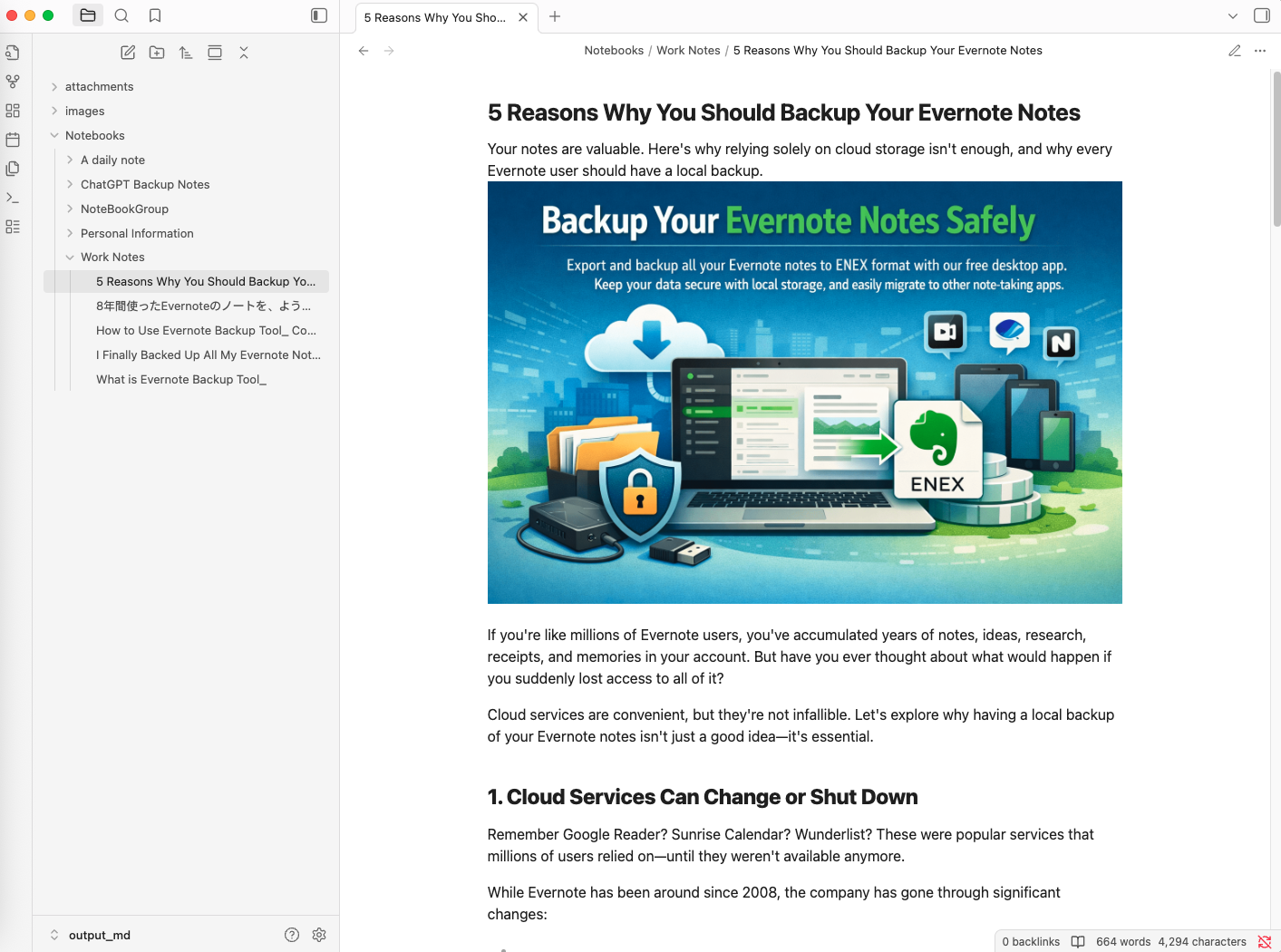
The Markdown export writes one file per note, organizes notes under their notebook and stack directories, and places images and other resources in shared folders at the export root. Default individual filenames include the note title and full GUID to distinguish notes with identical titles.
Open the complete Markdown export root as your vault. Opening only Notebooks, or copying just one notebook folder, leaves the shared resource folders outside the vault and can break attachment access.
export_md/
├── Notebooks/
│   └── Stack/
│       └── Notebook/
│           └── Note title__GUID.md
├── images/
└── attachments/
This illustrates the current export layout; names vary with your library and filename settings. Images and documents are shared at the export root, outside the notebook folders. Keep the whole export_md directory together.
Start with a local copy of your account
- Install Evernote Backup Tool on a Mac or Windows computer. Choose a disk with enough space for the database, exported notes and attachments.
- Connect your Evernote account through browser authorization. For Yinxiang, use the separate connection settings in the app.
- Sync the account and review the local verification report. Retry incomplete downloads before treating the archive as complete.
- Export a representative sample of up to 50 different notes, including images, a PDF, tables and linked notes. Check those files in your destination app before buying a pack for the rest.
Ordinary note and attachment sync connects to the service API; you do not need Evernote’s desktop app for that workflow. This is a desktop tool, so a phone or browser alone cannot run the backup. Task and reminder synchronization has separate authentication requirements and should not be assumed to follow the ordinary-note path.
Synchronization needs Internet. Once the required content is stored locally, file export works offline. Shared content and other special account areas remain subject to the app’s supported scope and your account permissions.
Export the sample in Markdown and keep ENEX too
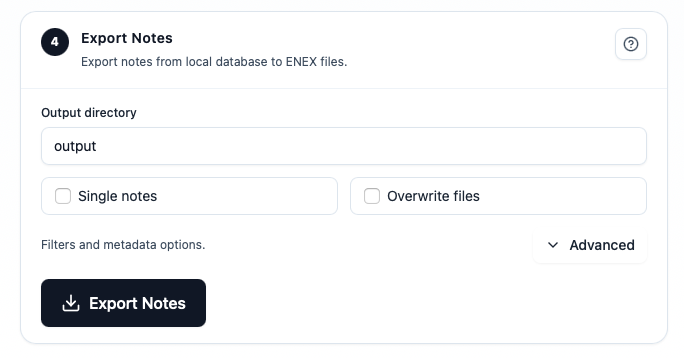
Enable Export Markdown in the export settings. The Markdown output is placed alongside the main ENEX output in a directory derived from its name, such as export_md/. You can keep the ENEX files as a separate preservation copy.
Review the selected notebook scope and available note credits before exporting. The tool can process multiple notebooks together within that quota; it is not subject to Evernote’s native 100-selected-note export operation. This does not make the free trial an unlimited export.
Include notes with identical titles, non-Latin text, a long web clip and a PDF. Filenames may replace characters that a filesystem cannot accept; the full-GUID naming option helps distinguish individual notes. A title changed on disk is not a guarantee that an original Evernote link now points to it.
Open the full output as a new vault first
- In Obsidian’s vault switcher, choose Open folder as vault.
- Select the root directory containing
Notebooks/,images/andattachments/. - Open a note from several different notebooks. Inspect embedded images and click a PDF or document link.
- Search for a known sentence, then compare the note against its source.
For an existing vault, first check the export in a separate test vault. Then copy the complete output tree into a dedicated subfolder of the existing vault, keeping the resource folders beside Notebooks. Back up that vault first and avoid merging unrelated images directories by hand. See Obsidian’s Markdown import guidance.
Know what happens to links, properties and tasks
| Item | What to expect |
|---|---|
| Images and attachments | Local resource files with relative paths from the note. |
| Stack and notebook names | Directories, with filesystem-safe naming adjustments. |
| Evernote internal links | The original address remains. It is not rewritten to an Obsidian note link. |
| YAML frontmatter | Generated with title, created and updated dates, tags, notebook, Evernote GUID, source URL and stack when available. |
| Dates, tags, source URL | Retained in ENEX and written as YAML properties by the current Markdown exporter. |
A folder named after a stack is useful navigation, but it does not recreate nested tag relationships. Likewise, a checklist-looking line is not proof that a task’s reminder, due date or completion state became an equivalent Obsidian feature.
Read the focused checks for note links, tags and completed tasks. Keep ENEX when you need a reference for fields that are not represented in the working Markdown.
Check rich formatting and protect edits in the vault
The built-in converter handles common text elements, headings, emphasis, lists, links and resource references. Complex tables, colors, merged cells, encrypted sections and application-specific elements should be checked rather than assumed to look identical.
Later syncs can download changes from Evernote, and the export offers overwrite and changed-content options. This is a one-way workflow: editing a Markdown file in Obsidian does not update Evernote. Exporting over that same file can replace your local edits.
During migration, use a separate staging output for fresh exports. Review changes before replacing anything in your working vault. Re-exporting an already-counted note uses no additional note credit; exporting a new note still needs an available credit.
Check the vault before using it every day
- Compare the selected source notes with the generated Markdown notes; ENEX file count is a different measure.
- Open images and a PDF from at least two notebook folders.
- Check duplicate titles and titles containing characters that were sanitized.
- Click an Evernote note link and record whether it still opens the old account.
- Inspect a long clip, a table and a note containing tasks.
- Keep both a separate vault backup and the original ENEX archive.
The Obsidian fidelity checklist gives you a test matrix. The long-form migration guide covers planning and cleanup decisions; this page describes the current file workflow.
One library. Every export format.
Pay once. Choose by note count.
Try 50 different notes and their attachments free, with no card. Full account sync and the local verification report are free before you choose a pack.
Up to 1,000 notes
$29
USD · one-time purchase
Up to 10,000 notes
$49
USD · one-time purchase
Up to 50,000 notes
$79
USD · one-time purchase
- ENEX, HTML & Markdown · HTML index & search
- All attachments for your selected notes
- Packs stack and never expire
- A note counts once, across formats and repeat exports
Trial exports count toward the paid total: after exporting 50 trial notes, a 1,000-note pack leaves room for 950 new notes. Re-exporting those notes in another format uses no additional credit.
Purchased packs share one quota across your devices. Previously trial-exported notes count toward your purchased total. The purchased version and its minor updates are included; future major versions are not. Existing Backup and Migration licenses keep their original unlimited-note entitlements. Contact support if you need help with an existing license.
Payments by Paddle. Refunds within 14 days for functional or compatibility issues. Destination app limits still apply; check a sample before moving your library.
Questions before you move
Will Evernote note links become [[links]]?
No. The current Markdown exporter retains the original Evernote address. Verify links and plan any relinking separately; generated filenames alone do not rebuild the link graph.
Are dates and tags written as frontmatter?
Yes. The current Markdown exporter writes title, created and updated dates, tags, notebook, Evernote GUID, source URL and stack when available. Check that Obsidian displays them as properties for your sample notes.
Which directory should I open as a vault?
Open the entire Markdown export root, containing Notebooks, images and attachments. Opening only a notebook subfolder can leave its relative attachment paths outside the vault.
Will it update my Obsidian edits back into Evernote?
No. Sync downloads from Evernote and export writes local files. Back up your vault and use a separate staging directory before re-exporting over files you have edited.
Can I use it with Yinxiang?
The app supports a separate Yinxiang connection and exports the locally synchronized notes. Use its own account settings and check the sample; do not assume Evernote International’s account limits or authentication steps apply to Yinxiang.
Official references
Destination steps and limits were checked against these documents.
Find your next workflow