Evernote → Markdown
Export Evernote to Markdown.
Create editable .md files from notes synchronized into your local database. Keep notebook directories, images and documents together for Obsidian and other Markdown workflows.
macOS & Windows · No card needed · Updated
Evernote’s native export and this Markdown route
Evernote’s native desktop export provides ENEX and HTML. Markdown requires a separate export path. Evernote Backup Tool first downloads your account’s supported content into a local database, then generates Markdown from that local source.
This is useful when you want editable text or a folder you can open in Obsidian. It is not a general ENEX upload converter: existing ENEX files are not accepted as an input to the Markdown exporter.
Choose a note pack by the number of different notes you intend to export, rather than by format. The same note can be exported as ENEX, HTML and Markdown without being counted three times.
Start with a local copy of your account
- Install Evernote Backup Tool on a Mac or Windows computer. Choose a disk with enough space for the database, exported notes and attachments.
- Connect your Evernote account through browser authorization. For Yinxiang, use the separate connection settings in the app.
- Sync the account and review the local verification report. Retry incomplete downloads before treating the archive as complete.
- Export a representative sample of up to 50 different notes, including images, a PDF, tables and linked notes. Check those files in your destination app before buying a pack for the rest.
Ordinary note and attachment sync connects to the service API; you do not need Evernote’s desktop app for that workflow. This is a desktop tool, so a phone or browser alone cannot run the backup. Task and reminder synchronization has separate authentication requirements and should not be assumed to follow the ordinary-note path.
Synchronization needs Internet. Once the required content is stored locally, file export works offline. Shared content and other special account areas remain subject to the app’s supported scope and your account permissions.
Understand the output before opening it
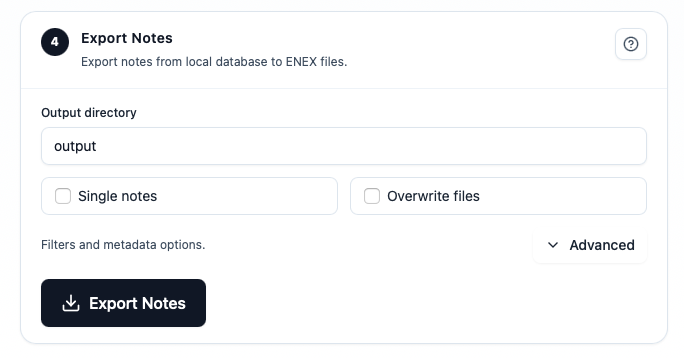
Enable Export Markdown. The output directory is derived from the main export name, for example export_md/. Notes are placed in Notebooks, grouped by stack when available, then notebook. The default individual filenames combine a readable title and full note GUID.
export_md/
├── Notebooks/
│   └── Stack/
│       └── Notebook/
│           └── Note title__GUID.md
├── images/
└── attachments/
This illustrates the current export layout; names vary with your library and filename settings. Images and documents are shared at the export root, outside the notebook folders. Keep the whole export_md directory together.
For a note inside a stack and notebook, a resource reference can look like this:

[Example document](../../../attachments/example.pdf)These paths illustrate the layout; resource names in actual exports include identifiers. Copy the entire export root to keep relative references intact. A text file on its own may still be readable while its images and attachments are missing.
What the text conversion includes
The built-in converter handles common headings, paragraphs, emphasis, lists, links, code and image references. Resource files are written to local image or attachment directories and referenced from the note.
It is a lightweight conversion rather than a complete reproduction of Evernote’s rich-text editor. Inspect complex tables, code indentation, nested lists, colors, encrypted sections and application-specific elements. A Markdown editor rendering the text does not prove the original layout was fully preserved.
Each note begins with YAML frontmatter containing its title, created and updated dates, tags, notebook, original Evernote GUID, source URL and stack when available. Check how a particular Markdown app displays those properties; generating them does not guarantee identical behavior in every editor.
Local attachments and original note links behave differently
An image or document downloaded as a resource is linked through a local relative path. An original Evernote note link keeps its Evernote URL. The exporter does not match it to another generated file or turn it into an Obsidian wiki link.
Open both kinds of links during your sample check. Try notes in different notebooks, a PDF and two notes with identical titles. If an attachment body is absent from the local source, resolve that download problem instead of assuming a generated note contains the missing file.
Keep an ENEX preservation copy and, when useful, a readable HTML export. Both are helpful references when you need to compare a resource or piece of formatting against the working Markdown.
Use the files in your next application
Obsidian: open the complete export root as a vault. If you copy into an existing vault, place the whole tree in a dedicated subfolder and preserve the relationships between notes and resources. See the Obsidian migration workflow.
Markdown editors: editors such as Typora or VS Code can read Markdown text, but preview behavior and support for attachments differ. Keep resources in place and inspect the preview rather than relying only on source text.
Apple Notes and UpNote: both offer documented file import routes, but they are separate steps with their own limits. Our Apple Notes and UpNote pages explain why ENEX can be a useful starting point and what to test.
This page does not promise complete imports into Notion or Logseq from the current export layout. Choose a destination based on a successful sample rather than the .md extension alone.
Repeat exports without overwriting your new work accidentally
After the first sync, the app can download source changes incrementally. Its export settings include overwrite and changed-content behavior, so you can refresh local files without intentionally rewriting every unchanged note.
The flow is one-way. Local Markdown edits are not uploaded into Evernote, and an export can overwrite those edits when you reuse the same output path. Use a staging export directory during migration, keep a backup of your working notes, and review changed files before replacing them.
An already-counted note can be exported again without another credit. Newly created source notes first exported later need remaining credits. Neither the note pack nor the repeat-export option removes destination app limits.
Verify files and resources together
- Compare the selected source notes with generated .md files, allowing for explicit exclusions or failures.
- Open the complete directory in the intended application.
- Test relative images and PDFs after copying the whole directory to another location.
- Click original note links and record whether they still depend on Evernote.
- Inspect duplicate titles, non-Latin filenames and complex content.
- Keep ENEX, the local database and an independent backup until the new workflow is usable.
For larger libraries, follow the migration completeness checks and large-library backup guide.
One library. Every export format.
Pay once. Choose by note count.
Try 50 different notes and their attachments free, with no card. Full account sync and the local verification report are free before you choose a pack.
Up to 1,000 notes
$29
USD · one-time purchase
Up to 10,000 notes
$49
USD · one-time purchase
Up to 50,000 notes
$79
USD · one-time purchase
- ENEX, HTML & Markdown · HTML index & search
- All attachments for your selected notes
- Packs stack and never expire
- A note counts once, across formats and repeat exports
Trial exports count toward the paid total: after exporting 50 trial notes, a 1,000-note pack leaves room for 950 new notes. Re-exporting those notes in another format uses no additional credit.
Purchased packs share one quota across your devices. Previously trial-exported notes count toward your purchased total. The purchased version and its minor updates are included; future major versions are not. Existing Backup and Migration licenses keep their original unlimited-note entitlements. Contact support if you need help with an existing license.
Payments by Paddle. Refunds within 14 days for functional or compatibility issues. Destination app limits still apply; check a sample before moving your library.
Questions before you move
Can Evernote itself export Markdown?
Its documented native desktop export formats are ENEX and HTML. This app generates Markdown from its own locally synchronized database.
Does the Markdown have YAML frontmatter?
Yes. The current exporter writes title, created and updated dates, tags, notebook, Evernote GUID, source URL and stack when available. Keep ENEX as the preservation copy and inspect the properties in your editor.
Can I use my existing ENEX files as input?
No. There is no existing-ENEX-to-Markdown import/conversion entry point. Connect and sync the source account before exporting Markdown.
Can I move one notebook folder by itself?
Its relative resources may live outside that folder. Move the complete Markdown export root, including Notebooks, images and attachments, or explicitly repair the links in your chosen app.
Will notes remain synchronized in both directions?
No. Sync downloads from the source account and export writes local files. Changes made in a Markdown editor are not synchronized back to Evernote.
Official references
Destination steps and limits were checked against these documents.
Find your next workflow