How to Back Up Evernote Properly: 3-2-1 Copies and Restore Testing
A folder full of files is not proof that your Evernote data is safe. Build several copies, keep the right export formats, and test one real restore before you need it.
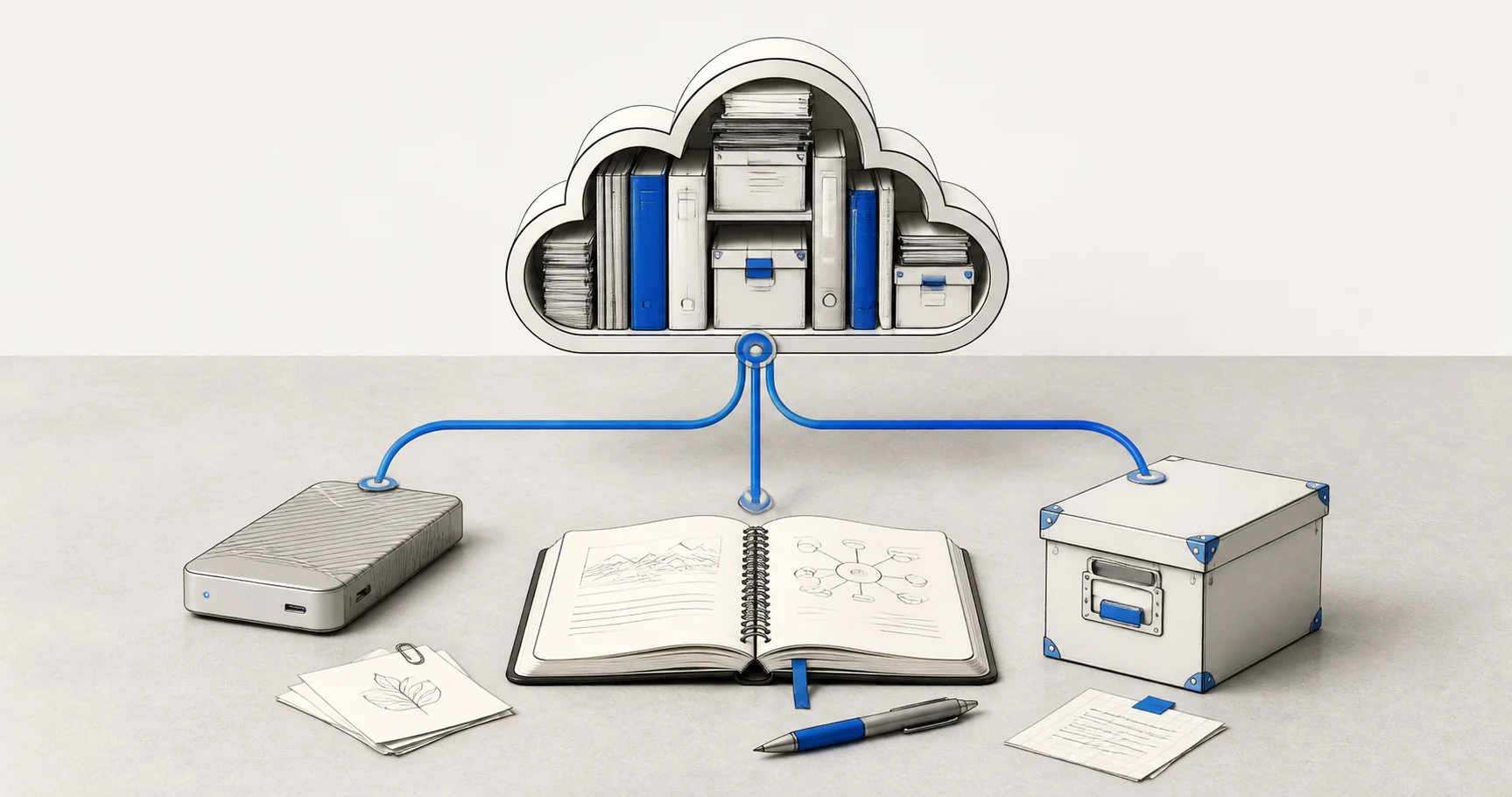
The question behind backup anxiety
A 2025 Evernote forum thread starts with a very ordinary question: do you back up your notes? The author had used Evernote for 15 years, followed a 3-2-1 strategy everywhere else, and still treated Evernote as the one exception. The hesitation was not a lack of interest. It was the uncomfortable combination of no simple native one-click workflow and uncertainty about granting a third-party app access to a personal archive.
The replies make the problem more interesting. People mention notebook-by-notebook ENEX exports, local application folders, and community scripts. They also disagree about whether a copied local database can be used for a clean reinstall. That disagreement is the useful signal here. A backup is not finished when a file exists. It is finished when you know what that file can recover.
Sync, local data, and backup are different things
It is easy to use the word backup for four different layers of data. Separating them makes the rest of the plan much easier.
- Cloud sync keeps your account available across devices, but it still depends on the account and service being reachable.
- A local cache or database can make the app faster offline, but its files may be tied to a specific client, account state, or sync process.
- An export archive gives you portable files that can be read, searched, re-imported, or migrated elsewhere.
- A recoverable backup adds a second location and a test that proves the important parts can be restored.
The practical consequence is simple. Copying an application folder can be worth doing as an extra precaution, but it should not be your only plan. Treat it as an unverified copy until a clean restore proves otherwise.
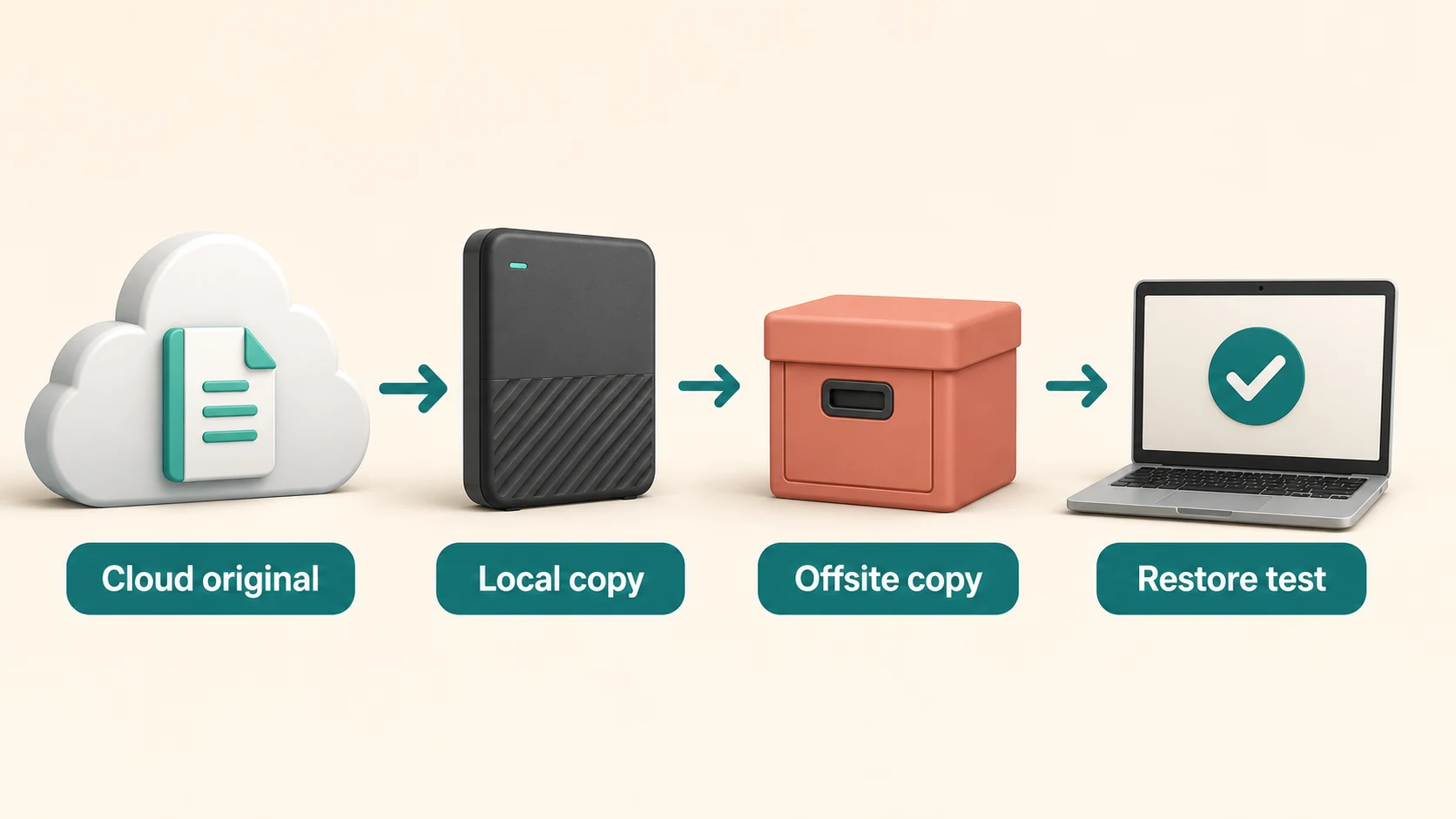
The useful endpoint is not another copy. It is a copy you have restored and checked.
Which formats to keep
There is no single perfect export format. Each one answers a different future question.
ENEX for preservation
Keep ENEX when you care about future re-import and preserving Evernote-specific metadata. It is not the friendliest format for casually browsing a large archive, so open a sample after export instead of assuming it is complete.
HTML for readable access
HTML gives you an archive you can open in a browser without rebuilding an app account. It is especially useful for spot checks, old research notes, and attachments that you want to find quickly.
Markdown for a migration path
Markdown is a good working format when you may move to Obsidian, Joplin, or another local notes app. Check tables, embedded files, internal links, and unusual formatting because portability usually involves trade-offs.
If your goal is long-term protection, ENEX plus HTML is a sensible baseline. Our format comparison goes deeper into the trade-offs. Add Markdown when you are actively testing a new workflow.
A practical 3-2-1 strategy
The 3-2-1 rule is less about a magic number than about avoiding one fragile point of failure:
- Three copies: the Evernote account, a local working archive, and a second exported copy.
- Two storage types: your computer plus an external drive, NAS, or another storage system.
- One offsite copy: keep one copy away from the machine that created it.
A local-first workflow can make the first copy much less tedious. Run a full sync, export the formats you actually need, and then let your normal backup system copy that archive to its second destination. If you want scheduled runs, see our automatic backup guide. The tool cannot decide which ten-year-old notebook matters most to you, and it cannot replace a restore test.
How to run a restore test
You do not need to simulate a catastrophic disaster on day one. A small, controlled test answers most of the important questions:
- Choose a clean folder or a separate test profile. Do not overwrite your live Evernote data.
- Import a small ENEX sample and open the same notes through the HTML archive.
- Pick one recent note, one old note, one image-heavy note, and one note with a PDF or other attachment.
- Check titles, dates, notebooks, tags, internal links, images, and attachments.
- Record what did not survive. That list is more useful than a vague feeling that the export looked fine.
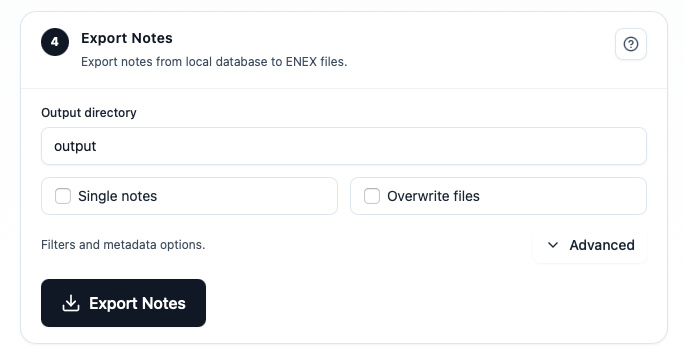
The screenshot is useful evidence for a how-to article, but the real evidence is still the opened note. For a deeper attachment check, use the attachment verification guide.
The final checklist
Before you call the backup done, make sure you can answer yes to these questions:
- Do I have a local copy that is separate from the live app account?
- Do I have at least one offsite copy?
- Can I open a readable sample without relying on Evernote?
- Can I re-import a sample into a clean environment?
- Did I check attachments, tags, dates, and links instead of only counting files?
- Do I know which export format is for recovery and which one is for daily reading?
The goal is not to collect backup files like souvenirs. The goal is to keep a small, boring, repeatable path back to your notes.
Related guides
Evernote Export Missing Notes? Why Your HTML File Count Doesn't Match
An export can report success while the number of HTML files on disk looks too low. Learn how to investigate duplicate titles, filename collisions, export settings, and OneDrive workflows before assuming notes are missing.
How to Back Up Evernote Before Changing Apps or Plans
Build a local copy first, verify it, and only then change your workflow. That order removes most of the avoidable risk.
Evernote to Apple Notes: Best Export Workflow Before You Move
Apple Notes is a common destination for Mac and iPhone users, but the safer move starts with a verified local export, not a blind import.