Evernote → UpNote
Move Evernote notebooks to UpNote.
Export one ENEX file per notebook, then let UpNote create notebooks from those filenames. Test large resources and original note links before importing your full library.
macOS & Windows · No card needed · Updated
Use notebook-sized ENEX files
UpNote documents importing one or multiple ENEX files. Enabling Use file name as notebook creates a notebook from each file, which fits this tool’s default one-file-per-notebook export mode.
Our desktop app exports on Mac or Windows. UpNote’s own importing app is available on Mac, Windows and Linux; that does not mean this backup tool provides a Linux desktop download. If you export on one computer and import on another, transfer the ENEX files first.
Start with a small notebook and retain an unchanged source copy. The ENEX route is documented by UpNote; your actual content still determines which resources and formatting arrive correctly.
Start with a local copy of your account
- Install Evernote Backup Tool on a Mac or Windows computer. Choose a disk with enough space for the database, exported notes and attachments.
- Connect your Evernote account through browser authorization. For Yinxiang, use the separate connection settings in the app.
- Sync the account and review the local verification report. Retry incomplete downloads before treating the archive as complete.
- Export a representative sample of up to 50 different notes, including images, a PDF, tables and linked notes. Check those files in your destination app before buying a pack for the rest.
Ordinary note and attachment sync connects to the service API; you do not need Evernote’s desktop app for that workflow. This is a desktop tool, so a phone or browser alone cannot run the backup. Task and reminder synchronization has separate authentication requirements and should not be assumed to follow the ordinary-note path.
Synchronization needs Internet. Once the required content is stored locally, file export works offline. Shared content and other special account areas remain subject to the app’s supported scope and your account permissions.
Check filenames before they become notebook names
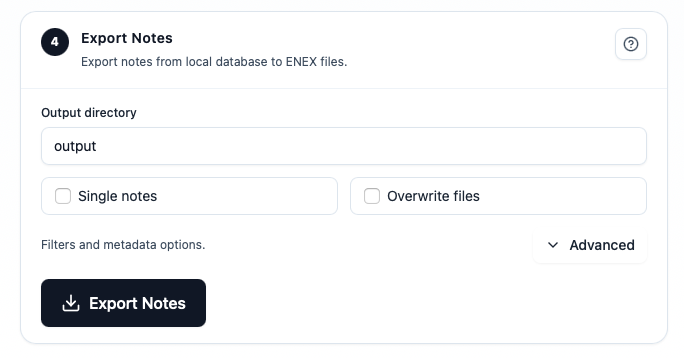
Leave Single notes disabled for one ENEX per non-empty notebook. Stack directories are preserved on disk. The notebook name forms the filename, with filesystem-safe changes where necessary.
Check names after export, especially if your notebook names contain slashes or other unsupported filename characters. When overwrite is disabled, repeat exports into the same directory may add suffixes such as (1). If UpNote uses that filename, the suffix can become part of its new notebook name.
Use a fresh destination directory for a migration batch, and choose exactly the files you intend to import. The tool does not automatically arrange UpNote’s nested notebooks from the stack directories.
ENEX stores titles, created and updated timestamps, tags and available source URLs. Storing those fields in ENEX does not guarantee that a destination app imports every field. Keep the original files so you can check anything the new app omits.
Select the ENEX files in UpNote
- On Mac, choose File → Import Notes → Evernote. On Windows, use Settings → General → Import from Evernote.
- Choose Select .enex files and select the sample file or files.
- Enable Use file name as notebook if you want separate notebooks named from the files.
- Choose how to handle Evernote tags: hashtags or notebooks.
- Review any optional target notebook. UpNote notes that selecting it does not automatically make it the parent of newly created notebooks.
- Import, inspect the result, and arrange nested notebooks afterward if needed.
Use UpNote’s official Evernote import instructions for current controls. Keep a batch log to avoid importing the same notes twice.
Plan for large files, long notes and import batches
UpNote’s import help warns that files larger than 20 MB and notes containing more than 300,000 characters may fail to import. It directs users to Settings → Feedback → Save debug log to find failed items.
This backup tool does not remove oversized attachments, split long notes, or offer a dedicated UpNote size precheck. A successful ENEX export is not a promise that UpNote will accept all its content. Keep an HTML reading copy and the original ENEX when a resource is not accepted.
UpNote recommends importing fewer than 10,000 notes at a time for best performance. That destination recommendation is separate from our 10,000- and 50,000-note packs. Choose smaller groups of notebook files for each import. If one notebook alone is too large, do not assume the exporter can split it into N-note ENEX files; that batching feature is not currently available.
After each batch, record imported notes and failures before continuing. A small trial containing a large PDF is more informative than a sample of text-only notes.
Check each batch before moving on
- Compare source notes with imported notes, accounting for failures listed in the debug log.
- Check notebook names against the actual ENEX filenames and arrange nesting manually if needed.
- Open images, PDFs and the largest resources in the test batch.
- Check tags after special-character replacements.
- Click a note-to-note link and confirm whether it opens Evernote.
- Review long clips, tables, timestamps and checklists against the source.
Retain the local database and at least one second copy of the exports. The completeness checklist helps you track successful imports separately from files that merely exist on disk.
One library. Every export format.
Pay once. Choose by note count.
Try 50 different notes and their attachments free, with no card. Full account sync and the local verification report are free before you choose a pack.
Up to 1,000 notes
$29
USD · one-time purchase
Up to 10,000 notes
$49
USD · one-time purchase
Up to 50,000 notes
$79
USD · one-time purchase
- ENEX, HTML & Markdown · HTML index & search
- All attachments for your selected notes
- Packs stack and never expire
- A note counts once, across formats and repeat exports
Trial exports count toward the paid total: after exporting 50 trial notes, a 1,000-note pack leaves room for 950 new notes. Re-exporting those notes in another format uses no additional credit.
Purchased packs share one quota across your devices. Previously trial-exported notes count toward your purchased total. The purchased version and its minor updates are included; future major versions are not. Existing Backup and Migration licenses keep their original unlimited-note entitlements. Contact support if you need help with an existing license.
Payments by Paddle. Refunds within 14 days for functional or compatibility issues. Destination app limits still apply; check a sample before moving your library.
Questions before you move
Will UpNote use my notebook names?
Its Use file name as notebook option uses ENEX filenames. This tool names notebook files from notebook names, but sanitization and repeat-export suffixes can change the actual filename. Review them before import.
Does buying 50,000 credits let me import 50,000 notes into UpNote at once?
The pack covers export credits, not UpNote’s import behavior. UpNote recommends fewer than 10,000 notes per import. Select smaller groups of notebook files and verify each batch.
Will notes with files over 20 MB import?
UpNote warns that large files and notes over 300,000 characters may fail. The backup tool does not automatically split or precheck for these UpNote limits; inspect failures and keep the original archive.
Do Evernote internal links work as UpNote links?
No automatic conversion is provided. UpNote says the original links remain clickable and open Evernote rather than matching newly imported UpNote notes.
Can I import on Linux?
UpNote documents an ENEX import route for its Linux app. Export with this tool on Mac or Windows first, then transfer the files; our marketed desktop builds do not include Linux.
Official references
Destination steps and limits were checked against these documents. Apple Notes and UpNote imports have not been independently tested with this tool’s export.
Find your next workflow