How to Export Completed Evernote Tasks Without Losing Their Status
A note export can look complete while task state is missing. This guide shows how to separate note backup from task verification and build a migration workflow you can trust.
Why Tasks Need a Separate Check
Evernote Tasks live alongside ordinary note content, but a task also has state: open or completed, a due date, and sometimes a reminder or recurring rule. An export can preserve the visible sentence while dropping the fields that made it a task.
That is why “all my notes exported” and “my task system migrated” are not the same claim. Treat task verification as its own acceptance test, especially if you have years of completed work mixed with active tasks.
Do not delete Legacy or cancel your plan based on file count alone. First prove that a sample of completed and open tasks is readable and represented correctly in the destination workflow.
What to Record Before Exporting
Create a small inventory before touching the export settings. It gives you something concrete to compare later.
- Total notes and notebooks
- Open tasks and completed tasks
- Tasks with due dates, reminders, or recurrence
- Notes that contain both a task and rich attachments
- Task-heavy notebooks you use every week
Use a handful of representative notes as your test set. Include one simple completed task, one open task with a due date, and one note where tasks appear next to an image or PDF.
Choose a Format for the Next App
ENEX
Keep an Evernote-oriented preservation copy and use it to test import into another notes app.
HTML
Create a human-readable archive of the note text. Use it as a reference when checking task counts and context.
Markdown
Useful for Obsidian, Logseq, or plain-text workflows, but task fields may need a destination-specific mapping.
If task state matters, keep at least two formats. ENEX gives you a structured fallback; HTML lets you inspect what a human can actually read without depending on an importer.
A Safer Local Workflow
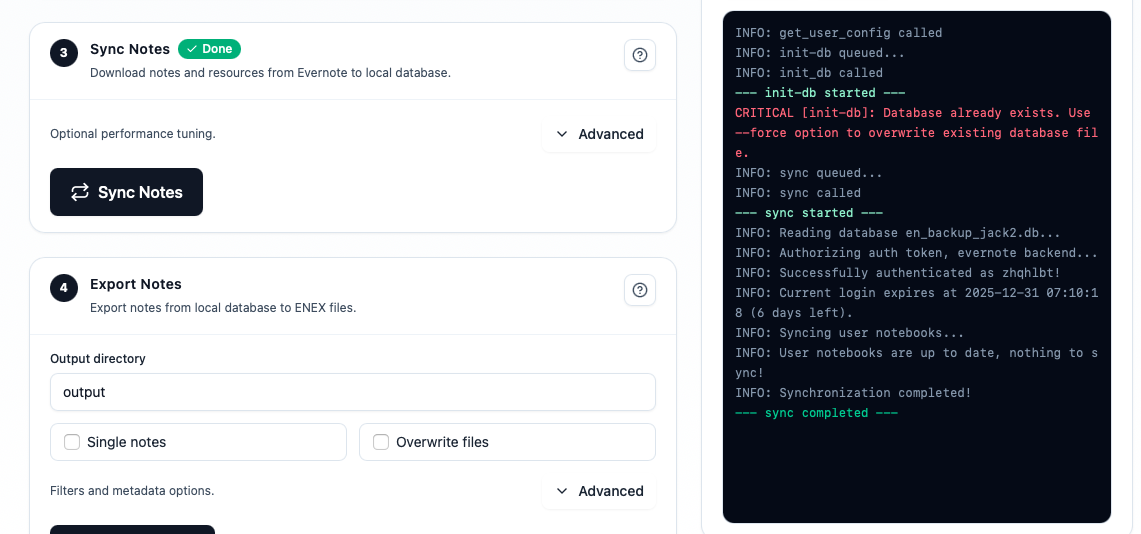
Evernote Backup Tool lets you synchronize your library to a local database before exporting. That separation is useful for task-heavy accounts because you can repeat an export after changing a filter or format without asking Evernote for the entire library again.
- Initialize: connect through Evernote OAuth and choose a dedicated local database.
- Sync: download notebooks, notes, resources, and task-containing notes.
- Test: export a small task-heavy notebook first.
- Export: create ENEX for preservation and HTML or Markdown for inspection or migration.
- Archive: copy the verified result to another drive before changing your Evernote plan.
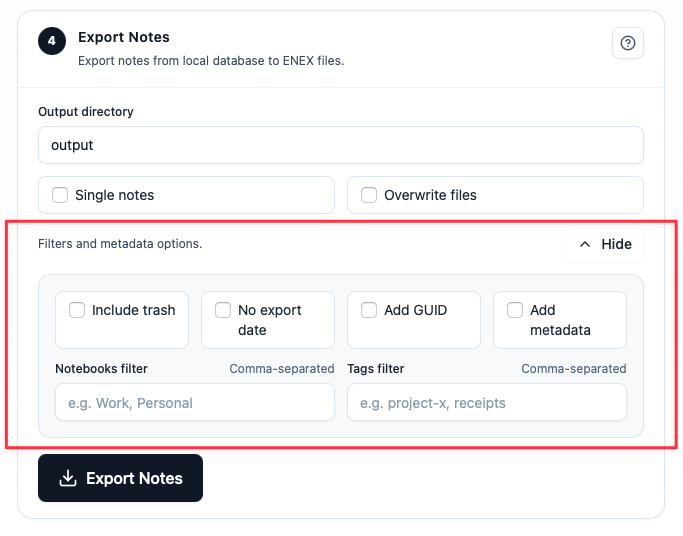
Use notebook and tag filters to isolate task-heavy areas. Smaller batches make it much easier to tell whether a missing task came from synchronization, export, or import.
Verify Completed and Open Tasks
Run the same test set through the exported archive and your target app. Record the result instead of relying on memory.
Completed task checks
- • The task text is present
- • Completed state is visible or mapped
- • Original note context is still readable
- • Due date or completion date is handled as expected
Open task checks
- • The task remains actionable
- • Due date and reminder are not silently dropped
- • Attachments and links still open
- • Search finds the task in its new home
Use a known sample. If you can find the same completed and open tasks in the backup and the destination, you have evidence—not just optimism—that the migration is ready.
Do You Still Need Evernote Legacy?
Some users keep Evernote Legacy because it is familiar for full-library exports, especially when they have tens of thousands of notes. That is a workflow preference, not proof that Legacy is the only safe backup path.
A modern local workflow can be easier to repeat: synchronize once to a local database, export by notebook or tag, and keep the original local copy as your source. The important question is not which client you used, but whether the resulting files can be opened, searched, and restored.
Keep Legacy available until your test set passes. After that, store the verified archive and document the steps that produced it so you are not dependent on a particular app version.
FAQ
Does ENEX always preserve completed task state?
Do not assume it does for every destination. Export a small sample and confirm how your chosen importer represents completed status, dates, and reminders.
Should I migrate tasks to Todoist or keep them in notes?
Choose based on your workflow. A task manager is better for deadlines and reminders; a note archive is better for preserving context. Many people use both and link the two.
Can I export only task-heavy notebooks?
Yes. Filtering by notebook or tag is a practical way to test a focused batch before exporting the entire library.
The Practical Takeaway
Treat completed-task export as a migration project, not a checkbox. Record a sample, create a local source copy, export more than one format, and verify both completed and open tasks in the destination. Once that test passes, you can leave Legacy—or change your Evernote plan—with much less uncertainty.
Download Evernote Backup ToolRelated guides
Evernote Export Missing Notes? Why Your HTML File Count Doesn't Match
An export can report success while the number of HTML files on disk looks too low. Learn how to investigate duplicate titles, filename collisions, export settings, and OneDrive workflows before assuming notes are missing.
How to Back Up Evernote Before Changing Apps or Plans
Build a local copy first, verify it, and only then change your workflow. That order removes most of the avoidable risk.
How to Back Up Evernote Properly: 3-2-1 Copies and Restore Testing
A folder full of files is not proof that your Evernote data is safe. Build several copies, keep the right export formats, and test one real restore before you need it.