Local backup & export guide
How to Export More Than 100 Evernote Notes
Export a whole Evernote notebook, even with more than 100 notes. Learn the native ENEX and HTML workflow, when bulk export helps, and how to verify attachments.
aluo.app · Updated
The limit is 100 selected notes OR one whole notebook
Evernote’s desktop app can export up to 100 selected notes or one entire notebook per export. A notebook can contain more than 100 notes. You do not need a paid backup tool simply because a single notebook has 101 notes.
The distinction matters when you have many notebooks: native export is a notebook-by-notebook process. A bulk backup workflow helps you handle multiple notebooks together and repeat the export later.
Read Evernote’s official export instructions. Native export is available in its Mac and Windows desktop apps, not the web app, and produces ENEX or HTML rather than Markdown.
Option 1: export each notebook in Evernote
- Open Evernote on Mac or Windows and find the notebook you want to save.
- Open the notebook’s menu and choose Export notebook. Use the notebook action rather than selecting every note in the note list.
- Choose ENEX for an import-oriented archive, or HTML for a readable copy.
- Save into a dated folder and keep the associated resource files together.
- Repeat for each notebook. Record which notebooks and formats you exported.
This is a reasonable choice for a few notebooks or an occasional manual archive. Menu wording can vary by Evernote version; use the official instructions linked above for the current interface.
Option 2: sync locally, then export notebooks together
Evernote Backup Tool is a Mac / Windows app that syncs notes and attachments to a local database before exporting files. It is useful when you have multiple notebooks, want repeat backups, or need Markdown.
- Download the trial, connect your account, and choose a local storage location.
- Run sync and check the progress and any reported errors. Sync requires an internet connection.
- Export a representative sample first: the current trial allows 50 different notes with all their attachments in ENEX, HTML or Markdown.
- If the result meets your needs, choose a note pack: $29 / 1,000 notes, $49 / 10,000 notes or $79 / 50,000 notes. Every pack includes ENEX, HTML and Markdown.
- Export into a new folder and verify notes and attachments before removing anything from Evernote.
Compare with native export. Packs stack and never expire; the same note counts once across formats and repeat exports.
If the result is smaller than expected
First identify which count you are comparing: selected source notes, synchronized notes, ENEX files, or imported notes. Default notebook export can place hundreds of notes in one ENEX file, while Markdown writes individual note files. Empty notebooks and deliberately excluded content also change the file count.
- Review synchronization errors and attachment download status. Retry incomplete resources while the source account is still accessible.
- Check notebook selection, export filters and the local verification report. Confirm the intended notes are inside the supported account scope.
- Review available export credits. The 50-note trial is cumulative, and trial exports count toward a later purchased total. A 1,000-note pack after 50 trial notes allows 950 additional new notes.
- Export to a fresh directory and inspect a small sample. Do not overwrite your only readable archive while investigating.
- If you are moving to another app, compare successful imports and failures separately from generated files.
Default ENEX output is one file per non-empty notebook, including stack directories when present. It does not automatically split a notebook into fixed-size batches. Follow the destination-specific migration routes for Apple Notes, UpNote, Obsidian and Markdown.
Check the archive before you rely on it
- Check notebook coverage and the sync/export status. File count alone is not a reliable note count across all formats.
- Open recent and old notes, including an image, a PDF and a long web clip.
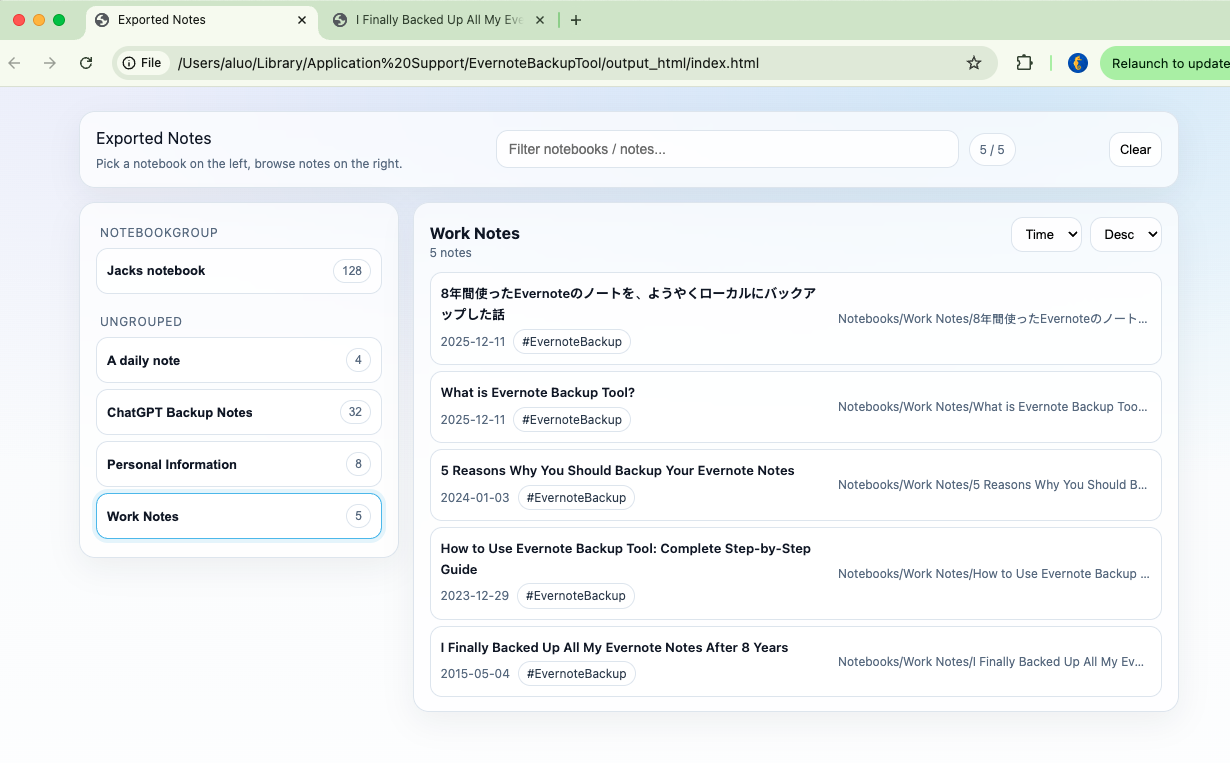
- For HTML, open the index and a note, then open a linked attachment. Move the whole export folder together.
- For ENEX, test a small import into a separate notebook or test account.
- Keep a second copy on independent storage, and record the export date.
HTML and Markdown exports can be read offline. Internal links, tasks and complex formatting should be checked in your target app rather than assumed to survive unchanged.
Frequently Asked Questions
Can a notebook with 1,000 notes be exported natively?
Yes. Evernote documents an entire notebook as an alternative to the 100-selected-note export limit. The notebook may contain more than 100 notes.
Do I need a paid Evernote plan to export?
Evernote’s official export guide says export is available to Free users too. Use its desktop app and check your account’s current access restrictions.
Does Evernote export Markdown?
Native export provides ENEX and HTML. Evernote Backup Tool’s trial can test Markdown, and every paid pack includes Markdown within its note quota.