Evernote to Obsidian: A Practical Migration Guide
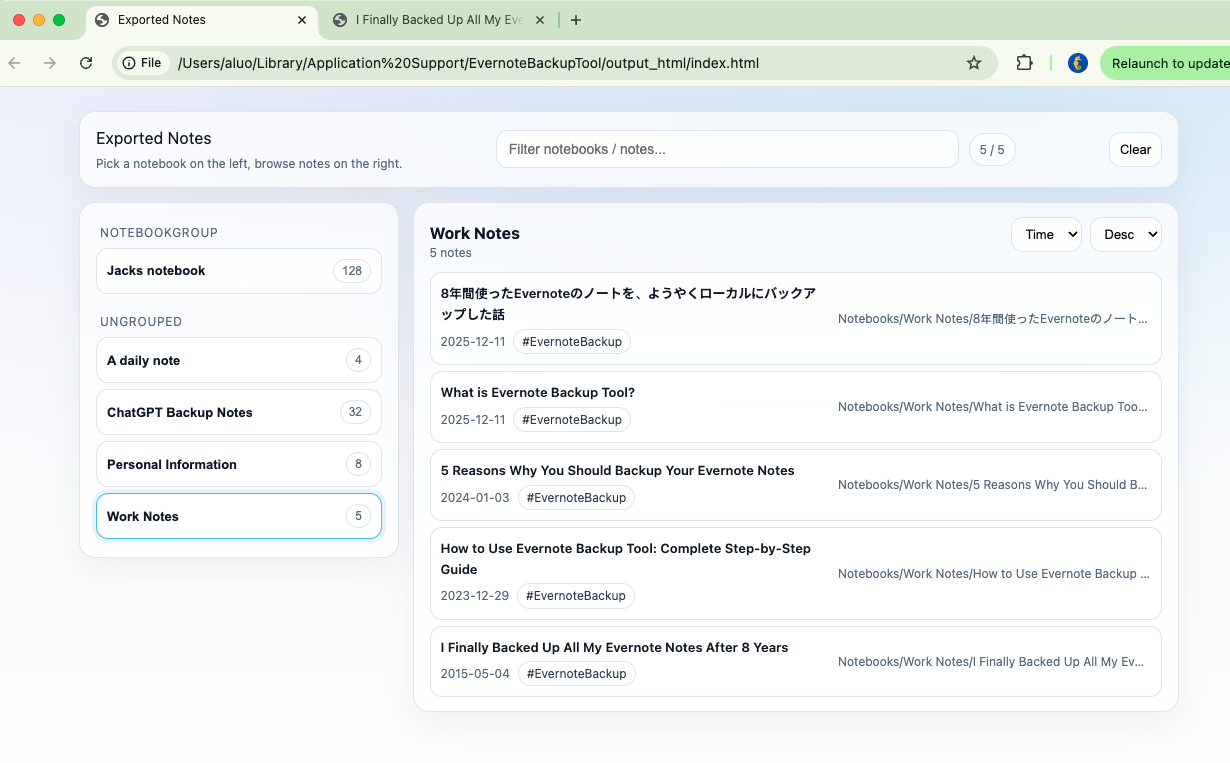
Moving years of notes from Evernote to Obsidian isn't just an export and import. Here's how to migrate properly using Markdown export, avoiding the common pitfalls that leave people with broken links and missing attachments.
Why Users Consider Moving from Evernote to Obsidian
Evernote and Obsidian represent fundamentally different philosophies about note-taking. Understanding why people switch helps clarify what matters most during migration.
Common Reasons for Switching
Local-First Storage
Obsidian stores everything as plain text files on your computer. No cloud dependency, no subscription required for core features, no risk of a company going away with your data.
Linked Thinking
Obsidian's bidirectional links and graph view help discover connections between notes. This appeals to researchers, writers, and anyone building a personal knowledge base.
Extensibility
Hundreds of community plugins extend Obsidian's functionality. From task management to spaced repetition to publishing - if you can imagine it, there's probably a plugin.
Pricing Concerns
Evernote's pricing changes have pushed some users toward alternatives. Obsidian is free for personal use, with optional paid sync and publish features.
Markdown Future-Proofing
Markdown files work with hundreds of apps. If you leave Obsidian someday, your notes come with you - no export needed.
Before you migrate: Obsidian is different from Evernote. It doesn't have web clipper, doesn't sync automatically (without paid sync or setup), and has a steeper learning curve. Make sure you've actually tried Obsidian before committing to migration.
Key Challenges in the Migration Process
Evernote and Obsidian store notes very differently. These fundamental differences create specific challenges during migration.
Format Mismatch
Evernote stores notes in ENML (Evernote Markup Language), a proprietary HTML-like format. Obsidian uses Markdown. Converting between them isn't a 1:1 translation - some things don't map cleanly.
Format Comparison
Evernote (ENML)
<en-note>
<div>
<span style="font-weight:bold;">
Meeting Notes
</span>
</div>
<div>
<en-todo checked="false"/>
Review budget
</div>
<en-media type="image/png"
hash="abc123..."/>
</en-note>
Obsidian (Markdown)
# Meeting Notes
- [ ] Review budget
![[screenshot.png]]
Attachment Handling
In Evernote, attachments are embedded in notes and referenced by hash. In Obsidian, attachments are separate files linked by filename. The migration must:
- Extract all attachments as individual files
- Give them meaningful filenames (not hashes)
- Update note content to reference correct file paths
- Handle filename collisions (two images named "screenshot.png")
Organizational Structure
Evernote organizes notes into notebooks and stacks. Obsidian uses folders (and optionally tags). The mapping seems straightforward until you encounter:
- Notebook names with special characters that aren't valid folder names
- Very long notebook names that exceed filesystem limits
- Linked notebooks from shared accounts
Rich Formatting Loss
Evernote supports formatting that Markdown doesn't:
- Text colors: Markdown has no native color support
- Highlight colors: Basic Markdown only supports one highlight
- Complex tables: Merged cells don't exist in Markdown
- Font sizes: Markdown uses heading levels, not arbitrary sizes
- Indented content: Evernote's indent behavior differs from Markdown
Reality check: Some formatting will be lost or simplified. Notes that relied heavily on colors and complex tables may look different in Obsidian. This is a tradeoff of moving to a simpler format.
Why Markdown Is the Best Bridge Format
You could technically import ENEX files directly into Obsidian using the built-in importer. But exporting to Markdown first offers significant advantages.
Control Over the Conversion
Direct ENEX import means Obsidian's importer makes all the conversion decisions. With a separate Markdown export step, you can:
- Review and adjust files before importing
- Choose how attachments are named and organized
- Decide how to handle formatting edge cases
- Fix problems without re-exporting from Evernote
Preview Before Committing
Markdown files are plain text - you can open them in any text editor. Before pointing Obsidian at thousands of files, you can spot-check the conversion quality, verify attachments are linked correctly, and catch problems early.
Flexibility for Future Changes
Once your notes are in Markdown, you're not locked to Obsidian. The same files work with:
- Logseq
- Notion (with import)
- Bear
- iA Writer
- Typora
- VS Code
- Any Markdown editor
Better Attachment Handling
A dedicated Markdown export can organize attachments more thoughtfully than a quick ENEX import. You can place attachments in per-note folders, a central attachments directory, or alongside their notes - whatever works best for your workflow.
Key insight: Think of Markdown export as creating a clean, portable version of your notes that happens to work great with Obsidian - not as an Obsidian-specific migration step.
Export Considerations for a Smooth Import
Before exporting, think about how you want your Obsidian vault organized. These decisions affect the export process.
Folder Structure
Decide how Evernote notebooks should map to Obsidian folders:
Option A: Direct Mapping
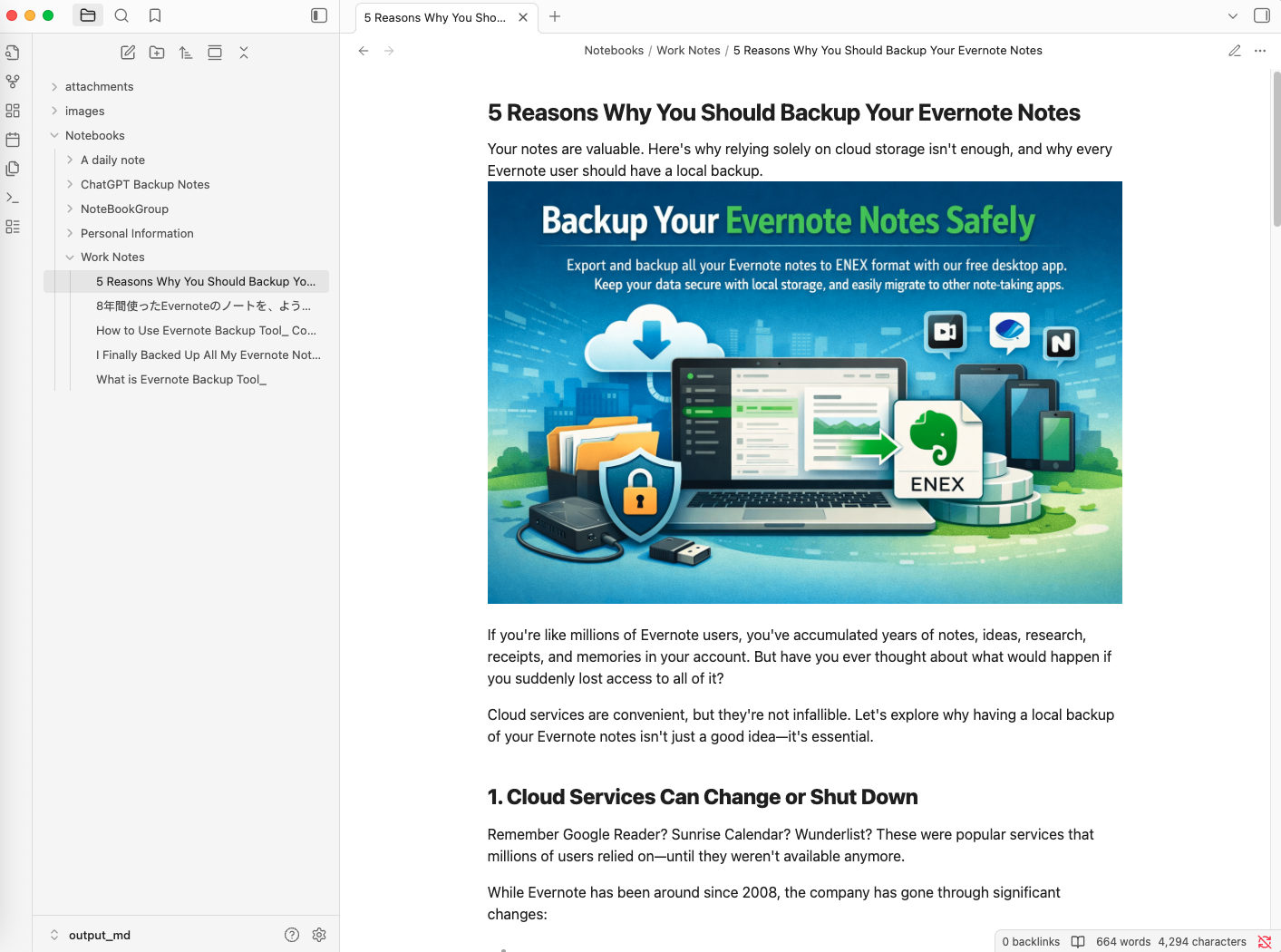
vault/
├── Work/
│ ├── Project Alpha.md
│ └── Meeting Notes.md
├── Personal/
│ ├── Recipes.md
│ └── Travel Ideas.md
└── Archive/
└── Old Projects.md
Each Evernote notebook becomes a folder. Simple and familiar.
Option B: Flat with Tags
vault/
├── Project Alpha.md (tagged: #work #projects)
├── Meeting Notes.md (tagged: #work #meetings)
├── Recipes.md (tagged: #personal #cooking)
└── Travel Ideas.md (tagged: #personal #travel)
All notes in one folder, organized by tags. Better for graph view and search.
Attachment Location
Where should attachments live? Common patterns:
| Pattern | Structure | Pros/Cons |
|---|---|---|
| Central folder | vault/attachments/ |
Clean, but hard to find specific files |
| Per-folder | vault/Work/attachments/ |
Organized by topic, moderate clutter |
| Same folder | vault/Work/image.png |
Easy to find, but cluttered folders |
| Per-note subfolder | vault/Work/Note/assets/ |
Most organized, most folders |
Link Format
Obsidian supports two link formats:
Wiki Links (Obsidian-style)
[[Another Note]]
[[Folder/Specific Note]]
![[image.png]]
Obsidian-native, shorter, but not standard Markdown
Standard Markdown Links
[Another Note](Another%20Note.md)
[Note](Folder/Specific%20Note.md)

Standard, portable, but more verbose
Metadata Preservation
Evernote notes have metadata: creation date, modification date, tags, source URL. You can preserve this in Obsidian using YAML frontmatter:
---
created: 2023-03-15T09:30:00
modified: 2024-01-20T14:15:00
tags:
- work
- meetings
- project-alpha
source: https://example.com/article
evernote-notebook: Work Projects
---
# Meeting Notes - Project Alpha
Discussion points from today's meeting...
Tip: Preserving creation dates is valuable. Being able to search for "notes from March 2023" or sort by date helps maintain the historical context of your notes.
Common Migration Mistakes
These mistakes waste time and sometimes result in data loss. Learn from others' experiences.
Mistake 1: Deleting Evernote Too Soon
Users migrate, see notes in Obsidian, and immediately cancel Evernote. Weeks later they discover missing attachments, broken formatting, or notes that didn't convert properly.
Mistake 2: Using ENEX Import Without Checking
Obsidian's built-in ENEX importer is convenient but may not handle all cases well. Users import thousands of notes and only later find systematic problems.
Mistake 3: Ignoring Filename Conflicts
Evernote allows multiple notes with the same title (in different notebooks). Obsidian uses filenames. If you flatten notebooks, "Meeting Notes.md" from three different notebooks collide.
Mistake 4: Not Handling Special Characters
Evernote note titles can contain characters that aren't valid in filenames: / \ : * ? " < > |. A note titled "Q4 2023: Budget Review" can't become a file directly.
Mistake 5: Forgetting Internal Links
Evernote supports note-to-note links. These use Evernote-specific URLs (evernote:///). After migration, these links go nowhere.
Mistake 6: Migrating Everything at Once
Dumping 10 years of notes into Obsidian at once is overwhelming. You haven't learned Obsidian's workflows, and suddenly you have thousands of files to manage.
A Cleaner Migration Workflow
Based on the challenges and mistakes above, here's a more systematic approach to migration.
Phase 1: Preparation
- Audit your Evernote: How many notes? How many notebooks? What percentage have attachments? Are there notes you should delete before migrating?
- Learn Obsidian basics: Spend a week using Obsidian for new notes. Understand how it works before importing old content.
- Decide on structure: Folders or flat? Where do attachments go? Wiki links or standard Markdown?
- Create a test vault: Set up a separate Obsidian vault for testing migration, not your real vault.
Phase 2: Test Migration
- Pick a test notebook: Choose one notebook with varied content - text, images, PDFs, tables, code blocks.
- Export to Markdown: Use your chosen export method.
- Import to test vault: Copy the Markdown files to your test Obsidian vault.
-
Verify thoroughly:
- Do images display correctly?
- Can you open PDF attachments?
- Did tables survive conversion?
- Are internal links working?
- Is metadata in frontmatter?
- Adjust and retry: If problems exist, adjust export settings and try again.
Phase 3: Full Migration
- Export all notebooks: Once test migration looks good, export everything.
- Verify completeness: Check note counts match. Spot-check notes from different notebooks.
- Copy to real vault: Move exported files to your actual Obsidian vault.
- Let Obsidian index: Large vaults take time to index. Let it complete before judging performance.
- Use Obsidian as primary: Start using Obsidian for daily work. Keep Evernote as read-only backup.
Phase 4: Verification Period
- Keep Evernote for 1-2 months: Don't delete your Evernote account yet.
- Note any missing content: As you use Obsidian, you'll naturally discover if anything is missing.
- Re-export if needed: Individual notes can be re-exported from Evernote if problems are found.
- Final backup: Before cancelling Evernote, make one final ENEX export as archival backup.
Success criteria: You can find any old note in Obsidian, attachments open correctly, and you haven't needed to reference Evernote for a month.
Summary and Final Thoughts
Migrating from Evernote to Obsidian is a significant undertaking. Done well, you end up with a powerful, future-proof knowledge base. Done poorly, you lose data and waste time.
Key Takeaways
- Markdown is the bridge: Export to Markdown for maximum control and portability
- Test before committing: Migrate one notebook first and verify everything works
- Plan your structure: Decide on folders, attachment locations, and link formats before exporting
- Preserve metadata: Use YAML frontmatter to keep creation dates, tags, and source URLs
- Handle attachments carefully: They're the most likely thing to break during migration
- Don't delete Evernote immediately: Keep it as backup until you're confident the migration is complete
- Migrate gradually: Start with active content, bring over archives as needed
The Bigger Picture
Moving to Obsidian isn't just changing apps - it's changing how you think about note ownership. Your notes become plain text files on your computer, independent of any company or subscription.
That independence comes with responsibility. You manage backups, you decide on organization, you choose sync solutions. For some people this is liberating. For others, it's overhead they don't want.
If you've decided Obsidian is right for you, a careful migration ensures you bring your accumulated knowledge along without losing the valuable parts. Take the time to do it properly - your notes are worth it.