Never Lose Your Evernote Data: Auto Sync and Backup Best Practices
Your Evernote notes contain years of valuable information—meeting notes, research, ideas, and memories. Losing this data would be devastating. Learn how to protect your notes with automatic backups and follow best practices to ensure your data is always safe.
Las traducciones de los artículos largos todavía se están preparando, por lo que el contenido principal se muestra en inglés por ahora.
Your Evernote notes contain years of valuable information—meeting notes, research, ideas, and memories. Losing this data would be devastating. Learn how to protect your notes with automatic backups and follow best practices to ensure your data is always safe.
Why You Need Automatic Backups
Relying solely on Evernote's cloud storage puts your data at risk:
- Service outages: Cloud services can experience downtime or technical issues
- Account problems: Login issues, suspended accounts, or billing problems can lock you out
- Accidental deletion: It's easy to delete notes by mistake
- Sync conflicts: Conflicts between devices can cause data loss
- Service changes: Companies can change features, pricing, or even shut down
- Security breaches: Your account could be compromised
Real Risk
Many users have lost notes due to sync issues, accidental deletions, or account problems. Don't wait until it happens to you—set up automatic backups today.
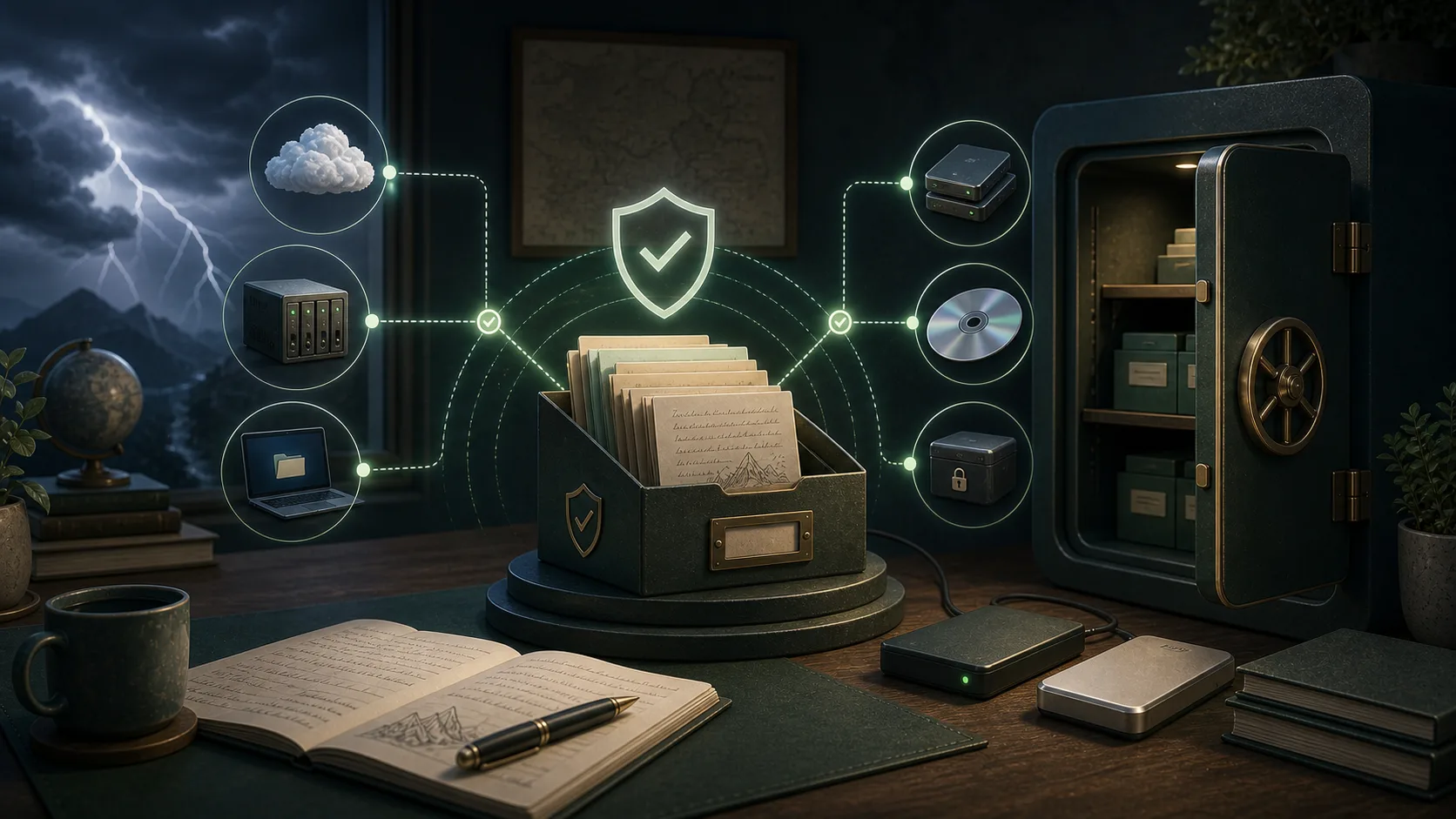
The 3-2-1 Backup Strategy
Follow the industry-standard 3-2-1 backup rule:
- 3 copies of your data: Original in Evernote + 2 backups
- 2 different storage types: Local backup + cloud storage (or external drive)
- 1 copy offsite: Keep one backup in a different physical location
How to Implement 3-2-1 with Evernote
- Original: Your notes in Evernote's cloud
- First backup: Local backup using Evernote Backup Tool with auto sync
- Second backup: Copy your backup database to cloud storage (Dropbox, Google Drive) or external drive
Choosing the Right Sync Frequency
The optimal backup frequency depends on how actively you use Evernote:
Heavy Users (10+ notes per day)
- Recommended: Every 1-2 hours
- Why: Captures changes throughout the workday
- Risk tolerance: Maximum 1-2 hours of potential data loss
Moderate Users (3-10 notes per day)
- Recommended: Every 6 hours
- Why: Balances protection with system resources
- Risk tolerance: Maximum half-day of potential data loss
Light Users (1-2 notes per day)
- Recommended: Daily
- Why: Sufficient for occasional use
- Risk tolerance: Maximum one day of potential data loss
Archive Users (rarely add notes)
- Recommended: Weekly or monthly
- Why: Minimal changes to capture
- Risk tolerance: Acceptable for reference-only archives
Complete Backup Strategy
A comprehensive backup strategy includes multiple components:
1. Automatic Scheduled Sync
Set up automatic sync in Evernote Backup Tool:
- Enable auto sync with appropriate interval
- Enable "Run on startup" to ensure first backup
- Keep the app running in the background
- Monitor logs to verify syncs are completing successfully
2. Automatic Export
Enable auto export after each sync:
- Export to multiple formats (ENEX + HTML or Markdown)
- ENEX for maximum compatibility and archival
- HTML for quick offline reference with search
- Markdown if you plan to migrate to Obsidian or similar apps
3. Offsite Backup
Protect against local disasters:
- Copy backup database to cloud storage weekly
- Or use an external drive stored in a different location
- Automate this with sync tools like Dropbox or Google Drive
4. Verification
Regularly verify your backups are working:
- Check logs monthly to ensure syncs are completing
- Spot-check exported files to verify content is readable
- Test restoration process at least once
- Verify note counts match between Evernote and backup
Storage Management
Automatic backups accumulate data over time. Manage storage effectively:
Database Size
- SQLite database grows with each sync (incremental)
- Typical size: 100-500 MB for 1000-5000 notes
- Attachments and images increase size significantly
- Monitor disk space and plan accordingly
Export Files
- Each export creates a new set of files
- Consider keeping only the most recent export
- Or archive older exports to external storage
- HTML exports are typically larger than ENEX
Cleanup Strategy
- Keep the database (it's incremental and efficient)
- Delete old export folders after verifying new ones
- Archive exports older than 3 months to external storage
- Maintain at least 2 recent complete exports
Security Best Practices
Protect your backups from unauthorized access:
Local Security
- Store backups in a secure location on your computer
- Use full-disk encryption (FileVault on Mac, BitLocker on Windows)
- Set strong passwords on your user account
- Don't store backups in publicly accessible folders
Cloud Storage Security
- Enable two-factor authentication on cloud storage accounts
- Use strong, unique passwords
- Consider encrypting backups before uploading to cloud
- Review sharing settings to ensure backups are private
External Drive Security
- Encrypt external drives with passwords
- Store drives in secure locations
- Label drives clearly but don't include sensitive information
- Test drive accessibility periodically
Disaster Recovery Plan
Know how to recover your data if something goes wrong:
Scenario 1: Accidental Note Deletion
- Check Evernote's trash first (notes stay for 30 days)
- If not in trash, open your most recent backup
- Export the specific note from backup to ENEX
- Import the ENEX file back into Evernote
Scenario 2: Account Access Lost
- Access your local backup database
- Export all notes to ENEX or HTML format
- Import to alternative note-taking app (Notion, Joplin, etc.)
- Or use HTML export for offline reference while resolving access
Scenario 3: Computer Failure
- Retrieve backup from cloud storage or external drive
- Install Evernote Backup Tool on new computer
- Copy backup database to new computer
- Export notes as needed
Scenario 4: Evernote Service Issues
- Use HTML export for immediate offline access
- Search and browse notes without Evernote
- Export specific notes to share with others
- Plan migration to alternative service if needed
Monitoring and Maintenance
Regular maintenance ensures your backup system stays reliable:
Weekly Tasks
- Verify auto sync is running (check "Next sync" time)
- Review logs for any errors or warnings
- Confirm disk space is adequate
Monthly Tasks
- Verify note counts match between Evernote and backup
- Test opening a few exported notes
- Update offsite backup (cloud or external drive)
- Review and clean up old export folders
Quarterly Tasks
- Test full restoration process
- Review backup strategy and adjust if needed
- Check for Evernote Backup Tool updates
- Verify all backup locations are accessible
Common Mistakes to Avoid
1. "I'll Do It Later"
Don't wait to set up backups. Data loss often happens when you least expect it. Set up automatic backups today—it takes less than 5 minutes.
2. Relying on a Single Backup
One backup is better than none, but it's not enough. Follow the 3-2-1 rule to protect against multiple failure scenarios.
3. Never Testing Restores
A backup you can't restore is useless. Test your restoration process at least once to ensure it works when you need it.
4. Ignoring Backup Failures
If you see errors in the logs, investigate immediately. A failing backup system provides no protection.
5. Forgetting About Offsite Backups
Local backups don't protect against theft, fire, or hardware failure. Always maintain an offsite copy.
Conclusion
Your Evernote notes are too valuable to risk losing. By implementing automatic scheduled sync, following the 3-2-1 backup strategy, and maintaining regular verification routines, you can ensure your data is always protected.
The best backup strategy is one that runs automatically and requires minimal maintenance. Set it up once, verify it works, and let it protect your data continuously in the background.
Don't wait until you lose important notes to start backing up. Take action today and gain peace of mind knowing your valuable information is safe.
Protect your notes with automatic backups
Download Evernote Backup Tool and set up automatic scheduled sync to ensure your notes are always protected.
Download Now