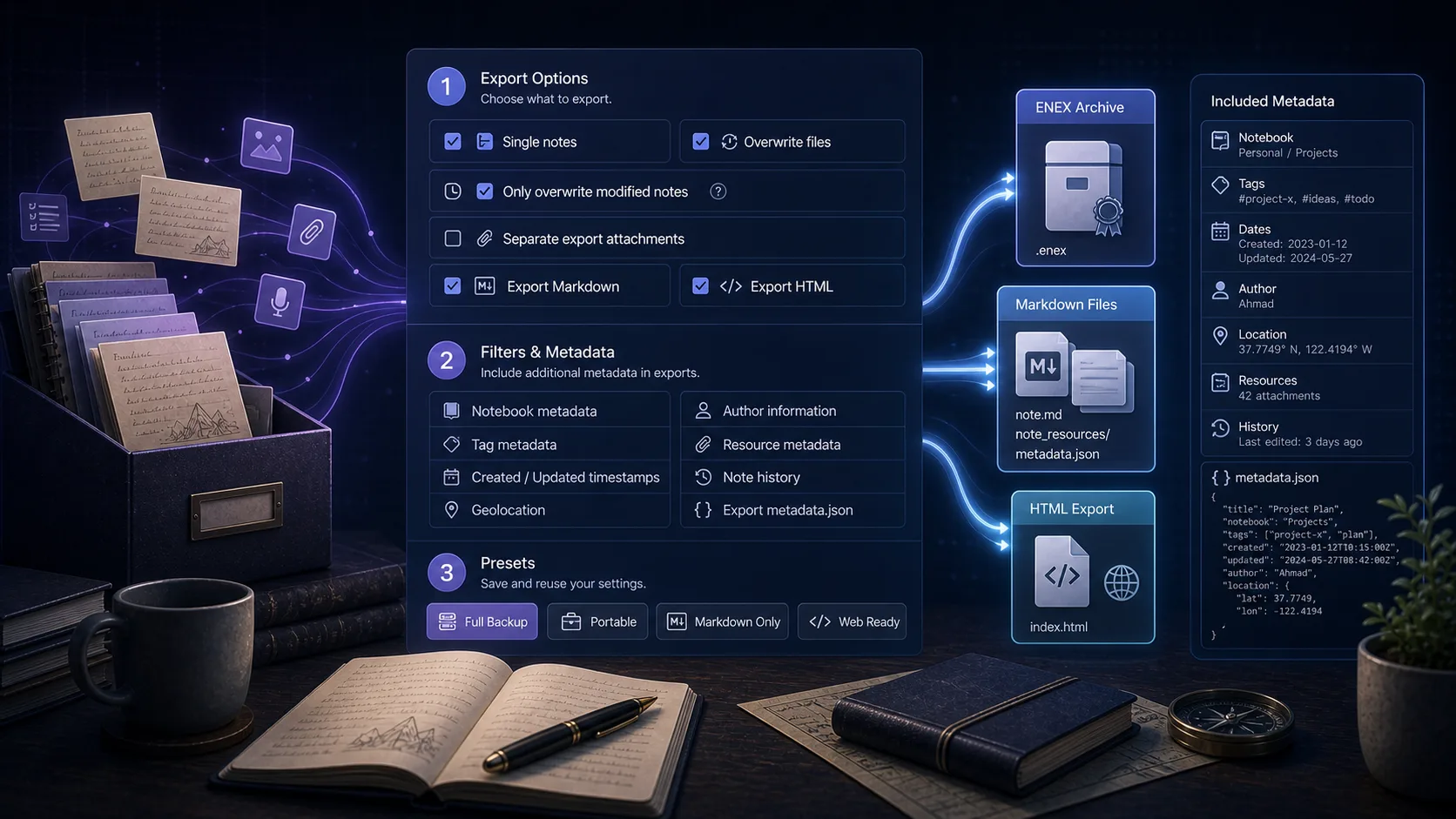
Understanding Export Options: ENEX Metadata Settings Explained
Confused about the "No export date", "Add GUID", and "Add metadata" options? This guide explains what each option does and when you should use them.
Las traducciones de los artículos largos todavía se están preparando, por lo que el contenido principal se muestra en inglés por ahora.
1. No export date
Purpose
Controls whether the export file includes an export timestamp.
Plain English
- When disabled (default): The exported ENEX file will record the export time, e.g., "March 15, 2024 10:30"
- When enabled: The exported file will not record the export time
When should you enable this?
- If you need to export the same notes multiple times and want the file content to be identical (useful for comparison and deduplication)
- If you use version control tools like Git to manage backup files, enabling this option prevents "changes" from appearing every time you export
Example:
Suppose you export your notes today and export them again tomorrow (note content unchanged):
- • Disabled: The two files will differ due to different export times
- • Enabled: The two files will be identical
2. Add GUID
Purpose
Adds Evernote's original ID to each note.
Plain English
- Every Evernote note has a unique ID (like a social security number), called a GUID
- When enabled, the exported file will include this ID
When should you enable this?
- If you need to process exported notes with programs or scripts and need to identify each note
- If you want to preserve the note's original identifier for future reference
- If you plan to import notes into other systems and want to keep the original ID
Example:
Suppose you have a note titled "Work Plan":
- • Disabled: The exported file only contains basic information like title and content
- • Enabled: The exported file also includes a unique ID like
a1b2c3d4-e5f6-7890-abcd-ef1234567890
3. Add metadata
Purpose
Adds more detailed association information to each note.
Plain English
- In addition to the note's content, it also saves IDs for the notebook, tags, and other related information
- This information is not included in regular exports
What additional information is included?
- Note's unique ID
- Notebook's unique ID and name
- All tag IDs and names
- Note's active status
When should you enable this?
- If you need a complete backup of all note association information
- If you plan to migrate notes to another platform and want to preserve the complete organizational structure
- If you need to perform data analysis on notes (e.g., statistics on most frequently used notebooks)
Example:
Suppose you have a note "Reading Notes" in the "Study" notebook with tags "Important" and "To-do":
- • Disabled: The exported file only has notebook name "Study" and tag names "Important, To-do"
- • Enabled: The exported file also includes unique IDs for the notebook and tags, plus more technical details
Recommended Settings
Regular Users
Just backing up notes for safekeeping
Recommendation:
Keep all options disabled and use default settings.
Advanced Users
Need programmatic processing or complete backup
- • Version control: Enable "No export date"
- • Script processing: Enable "Add GUID"
- • Complete backup: Enable "Add metadata"
Frequently Asked Questions
I'm exporting ENEX, Markdown, and HTML simultaneously. Which formats will these options affect?
Only ENEX format. Markdown and HTML are not affected by these options.
Will enabling these options make files larger?
Files will be slightly larger (a few hundred bytes to a few KB per note), but this is negligible for regular users.
I'm not sure whether to enable them. What should I do?
If unsure, keep them all disabled. These options are mainly designed for advanced users and special needs. The default settings work perfectly for most users.
After enabling these options, can I still import back to Evernote normally?
Yes! ENEX is Evernote's standard format and can be imported normally regardless of whether these options are enabled. The additional metadata is simply ignored during import if not needed.
Conclusion
These three export options give you fine-grained control over what metadata is included in your ENEX exports. For most users, the default settings (all disabled) work perfectly fine. Advanced users who need version control, programmatic processing, or complete metadata preservation can enable the options that match their needs.
Remember: these options only affect ENEX format exports. Markdown and HTML exports use different export logic and are not affected by these settings.